The 3-2-1 Backup Rule: How to Apply It in Small Businesses and at Home
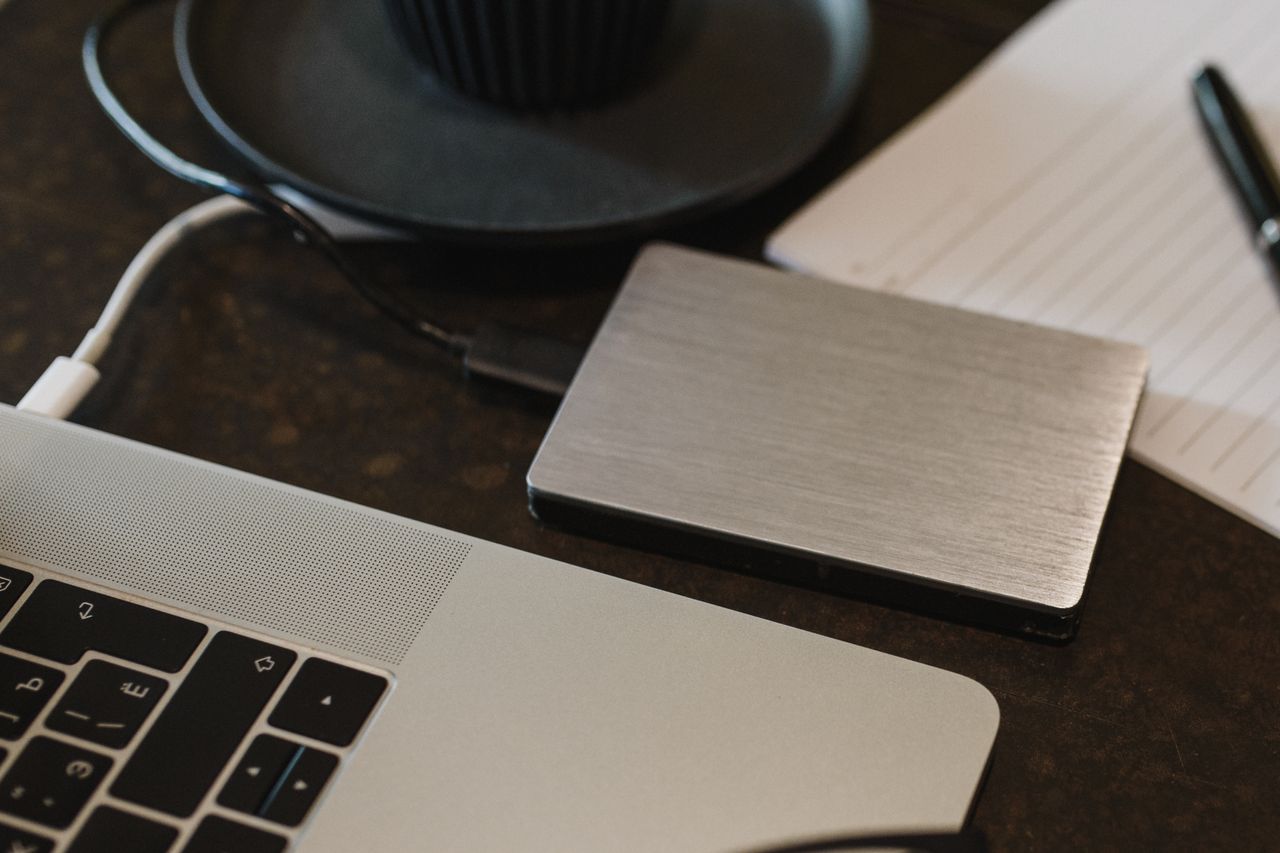
The 3-2-1 rule means keeping 3 copies of your data, on 2 different types of media, with 1 of them offline. France's data protection authority, the CNIL, explicitly recommends it. It is the simplest way to survive a hardware failure, a theft or a ransomware attack. Here is how to put it into practice, whether you are a freelancer, a small business or a home user.
Key takeaways:
- The 3-2-1 rule means 3 copies of your data, on 2 different types of media, with at least 1 kept offline.
- The CNIL also recommends storing at least one backup at a site geographically separate from where the original data lives.
- Cloud sync is not a backup: a deletion or ransomware encryption spreads to every synced copy.
- Cybercriminals often try to destroy backups: a drive left connected to the network can get encrypted too.
- A backup you have never restored cannot be trusted: regularly test the integrity and restorability of your copies, and write down the results.
Table of Contents
- What is the 3-2-1 backup rule?
- Why isn't a single backup enough?
- Cloud sync vs. backup: what's the difference?
- How do you apply the 3-2-1 rule step by step?
- Which media should you use for your three copies?
- How do you protect your backups from ransomware?
- How often should you back up, and how long should you keep copies?
- How do you check that your backups actually work?
- Yundera: a private server in France for your offsite copy
- The most common 3-2-1 mistakes
- Sources
- Frequently Asked Questions
What is the 3-2-1 backup rule?
The 3-2-1 rule is a simple way to make sure you never depend on a single copy of your data: 3 copies, on 2 different types of media, with 1 offline. The CNIL recommends it in its guidance sheet Security: Back Up: keep three copies of your data and “store them on 2 different media, 1 of which is offline.”
- 3 copies: the original you work on, plus two backups. If one is lost or corrupted, you still have another.
- 2 different types of media: for example, an external drive and a remote server. Two drives of the same model sitting on the same desk don't count, because a single failure, power surge or theft can take out both.
- 1 offline copy: a copy disconnected from the computer and the network. Ransomware can't encrypt what it can't reach.
You will often see another version of the rule, with “1 offsite copy.” It doesn't contradict the CNIL's version; it complements it. In fact, the CNIL also asks you to keep at least one backup at a geographically separate site from where the data is stored. An offsite copy survives a fire or a burglary, and an offline copy survives a cyberattack. The safest approach is to have both.
Pro tip: a single copy can tick both boxes. A disconnected external drive that you keep at home rather than at the office is both offline and offsite.
Why isn't a single backup enough?
A single backup isn't enough because it is often exposed to the same incident as the original: if both copies are in the same place, or always connected, they can disappear together. Yet that copy is what everything depends on when something goes wrong. As Cybermalveillance.gouv.fr puts it, “backup is often the only way to recover your data.”
- Drive failure: your computer's drive dies, and the backup drive, bought at the same time and used the same way, may fail shortly after.
- Theft: a burglar who takes the laptop will often grab the external drive kept in the same bag or on the same desk.
- Fire or water damage: a disaster at the office destroys everything in the room, the original and the copy alike.
- Human error: a folder deleted or overwritten by mistake can be replicated to the backup before you notice, if the backup doesn't keep older versions.
- Ransomware: a drive left plugged in or an accessible network share gets encrypted along with your files. Cybermalveillance's ransomware response sheet points out that cybercriminals “will often try to destroy the victim's backups.”
In every one of these cases, a single copy kept in the same place or always connected is lost along with the original. That's exactly the problem the 3-2-1 rule solves: by multiplying copies, media and locations, it ensures that no single incident can wipe out everything at once.
Cloud sync vs. backup: what's the difference?
Sync keeps the same content in several places, while a backup keeps a copy of your data as it was at a given point in time. So they don't protect you against the same risks. When you sync a folder with Google Drive, OneDrive or Dropbox, every change made on your computer is replicated to the cloud, then to your other devices, within seconds.
That's very convenient day to day, but sync also replicates mistakes:
- Deletion: a folder accidentally deleted on your computer also disappears from every synced device.
- Overwriting: if you save a bad version of a file, it replaces the good one everywhere.
- Ransomware: files encrypted on your computer are synced like any other change, and the encrypted version replaces the original in the cloud.
A real backup works differently. It is:
- Timestamped: you know exactly when each copy was made.
- Versioned: you can go back to how things were yesterday, last week or before an attack.
- Isolated: a disconnected copy isn't affected by what happens on your computer. That's the point of the offline copy, disconnected from the network, that the CNIL recommends.
Some sync services have a recycle bin or version history, but the provider sets their limits and retention period. A sync service can therefore be one of your media in the 3-2-1 rule, but never your entire backup strategy.
How do you apply the 3-2-1 rule step by step?
You apply the 3-2-1 rule in four steps: list what needs protecting, automate two copies, spread them across different media and locations, then make sure you know how to restore them.
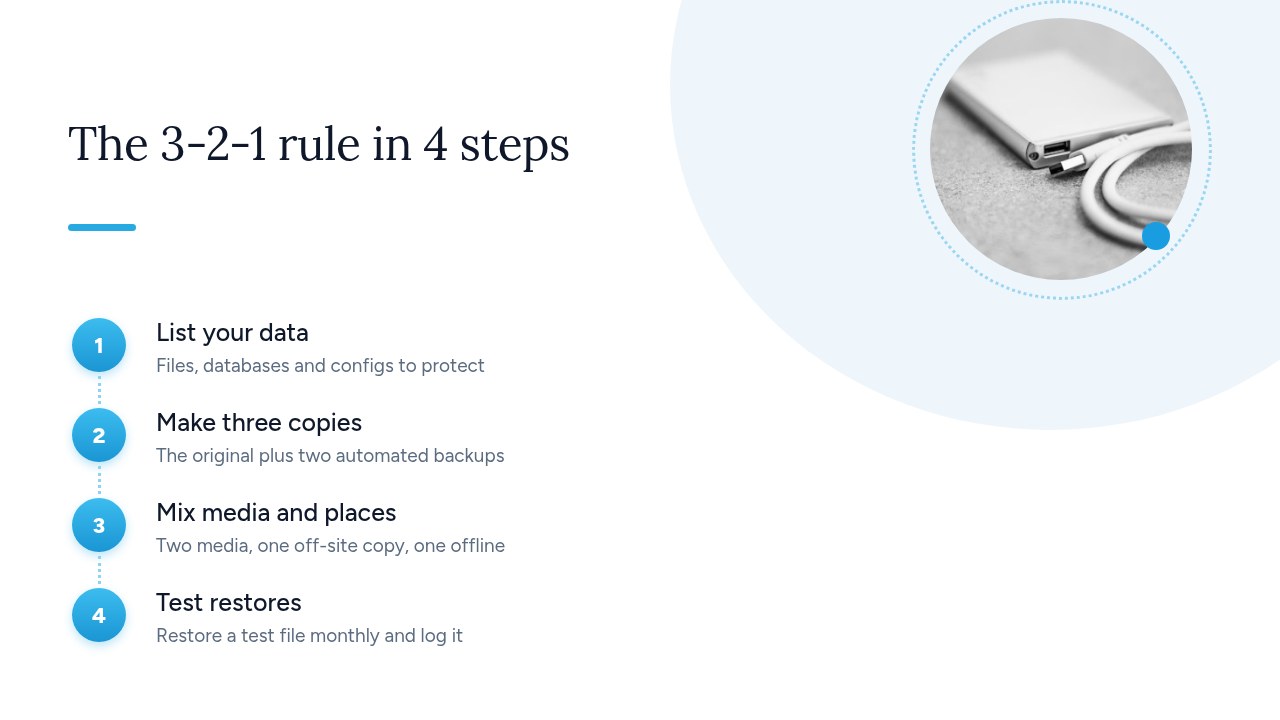
- Take inventory of your data: write down everything you can't do without. That includes documents and photos, but also databases, email and the configuration of your business software. Cybermalveillance.gouv.fr recommends backing up “critical data, systems and applications,” not just files.
- Automate two copies: a backup you have to start by hand will eventually be forgotten. Schedule it. The CNIL gives a baseline schedule: daily incremental backups and full backups at regular intervals. An incremental backup only copies what has changed since the last backup; a full backup copies everything.
- Vary media and locations: for example, keep one copy on an external drive that you unplug after each backup, and another on a remote server somewhere other than your premises. That gives you both an offline copy and an offsite copy.
- Test restores: regularly restore a test file, say once a month, and write down the date and the result. A backup is only worth something if you can restore it.
Pro tip: write the restore procedure on a single page and keep it with the offline drive. When an incident hits, nobody wants to be figuring out how to do it.
Which media should you use for your three copies?
For your three copies, the simplest approach is to combine a local medium you can disconnect with a remote one in another location. Here are the common options, with their cost, the risks they cover and how easy they are to take offline:
- External USB drive: the cheapest and simplest option. It protects against computer failure and, once unplugged, against ransomware. Cybermalveillance.gouv.fr advises keeping “a copy of your backups on an external medium […] that you disconnect once the backup is done.” Its weak point: it's easy to lose or steal.
- NAS: more expensive up front, but it centralizes and automates backups for several computers. Because it stays connected to the network, it's exposed to ransomware if it isn't properly isolated.
- Remote server: you pay a subscription, and it covers physical risks at the office such as theft, fire or water damage. It's your offsite copy, but not an offline one.
- Object storage: you pay based on how much you store. It works well for large volumes, and some offerings let you keep multiple file versions or lock them. It's also an offsite copy.
- Magnetic tape: it requires dedicated hardware and is better suited to small businesses with a lot of data. Once ejected and stored away, a tape is truly offline.
Be careful: two drives of the same model in the same place don't really count as two different types of media. A power surge, theft or fire can destroy both. Cybermalveillance also recommends keeping a backup in a different location from where the original data is stored.
How do you protect your backups from ransomware?
To protect your backups from ransomware, keep at least one copy out of the attacker's reach, meaning disconnected and encrypted, and plan in advance how you'll restore your data. Backups are a target: according to Cybermalveillance.gouv.fr's ransomware response sheet, cybercriminals “will often try to destroy the victim's backups,” to leave them no option other than paying the ransom.
- Keep disconnected copies: ransomware encrypts everything it can reach, whether that's connected drives, network shares or synced folders. An unplugged copy escapes it.
- Encrypt your backups: the CNIL asks you to protect backed-up data at the same security level as the original data, for example by encrypting backups. If a drive is stolen or a remote copy is exposed, its contents stay unreadable.
- Separate access: don't use the same account or the same password for your workstation and your backup system.
If an attack does happen, the sheet gives two clear instructions:
- Isolate: “If your backups are connected to the network, disconnect them to prevent their destruction.”
- Restore carefully: restore your data from a backup made before the attack, after making sure it wasn't infected.
Pro tip: keep your backup encryption key somewhere other than the computer being backed up, for example in a password manager or on paper in a safe place. If you lose it, the backup can no longer be restored.
How often should you back up, and how long should you keep copies?
Back up as often as the amount of work you can afford to lose requires. Cybermalveillance.gouv.fr puts it this way: “how often you back up will depend on your acceptable risk of data loss.” Ask yourself a simple question: if my drive died right now, how many hours or days of work would I be willing to redo?
Here are a few example schedules. They aren't standards, so adapt them to your situation:
- Freelancer: an automatic backup every working day, plus a copy to an external drive that you unplug every week.
- Small business: the schedule suggested by the CNIL, namely daily incremental backups and full backups at regular intervals. Very active databases, such as accounting or sales management, may justify several backups a day.
- Family: an automatic backup every week, plus one right after an important event, like transferring your vacation photos.
How long you keep backups matters as much as how often you make them. Keep several generations of backups, for example daily, weekly and monthly ones. A corrupted or encrypted file can go unnoticed for days: you need to be able to go back to a version from before the problem.
Be careful with personal data, though, such as that of your customers, employees or prospects: the GDPR limits how long you may keep it, and that rule also applies to your backups. Keeping a backup indefinitely means holding on to that data longer than allowed.
How do you check that your backups actually work?
The only way to know whether a backup works is to try restoring it. When software says “backup successful,” that proves the copy was made, not that you'll be able to get it back. The CNIL asks you to “regularly test the integrity of backups and the ability to restore them.” Cybermalveillance.gouv.fr recommends checking that the backup works, “for example, by copying it back into the original system.”
You can test in levels, from the simplest to the most thorough:
- A single file: every month, restore a random document and check that it opens and is complete.
- A folder: from time to time, restore an entire folder, such as your accounting files or a year's worth of photos, to a test location.
- A full machine: once a year, rebuild a computer or server from your backups, and note how long it takes.
Record each test in a simple log: the date, what you restored, the media used, the result and the time it took. For a small business, this log also shows that security measures are actually being applied.
Finally, prepare an emergency isolation procedure that spells out who unplugs what, and in what order, if you suspect an attack. To go further, on December 6, 2023, ANSSI (France's national cybersecurity agency) published a guide in its “Les Essentiels” series dedicated to backing up information systems.
Yundera: a private server in France for your offsite copy
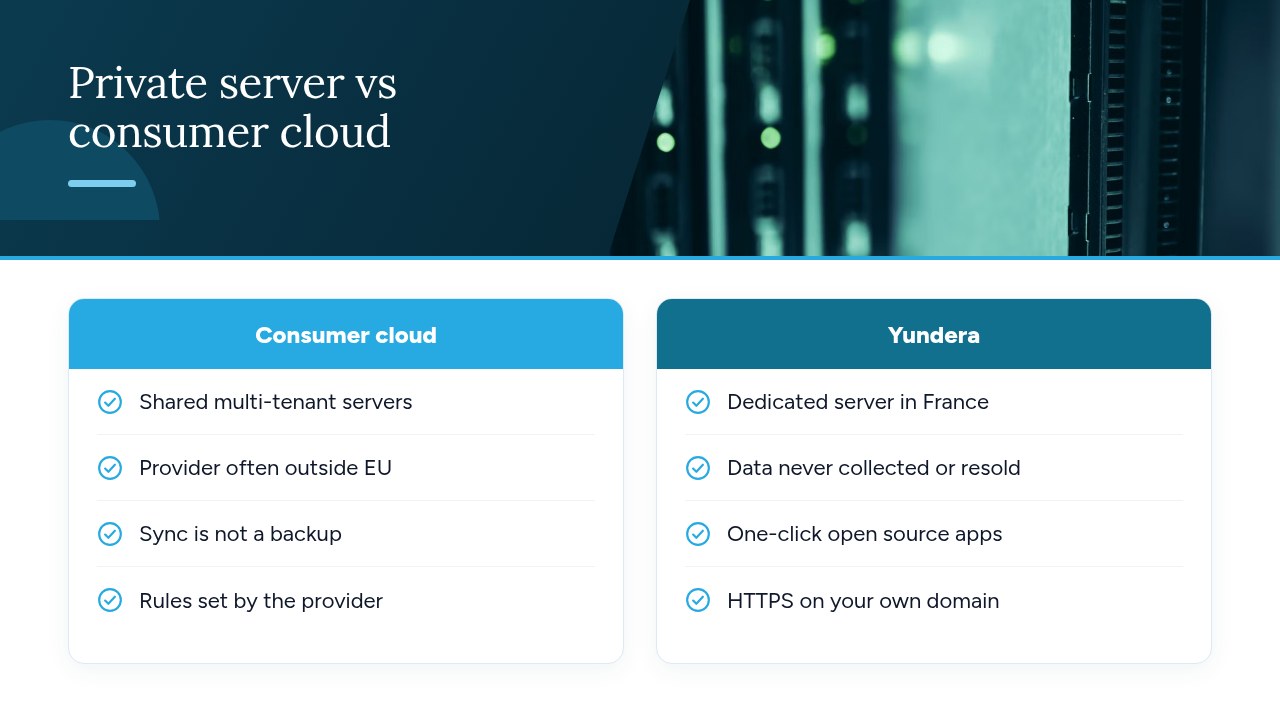
For the offsite copy in the 3-2-1 rule, one option is to store your files on a private server located somewhere other than your premises, without having to manage that server yourself. Yundera offers a managed private server for this, the Personal Cloud Server: it's hosted in France and dedicated to a single customer. The file storage app installs in one click from a store, like the other open source apps available (photos, website hosting, office suite, and more). Each app is reachable on your own domain over HTTPS, with no static IP, no port forwarding and no certificate to configure. Your data stays on your server: Yundera doesn't collect it or sell it. No technical skills are needed, because Yundera manages the server.
To be clear: this server can serve as the offsite copy in your strategy, but on its own it doesn't satisfy the whole 3-2-1 rule. You also need an offline copy, such as an external drive you unplug after each backup, as recommended by the CNIL. Remember to encrypt your backups too: our guide to self-hosted encrypted backups explains how, without the jargon.
To compare plans and pricing, visit the Yundera private servers page.
The most common 3-2-1 mistakes
The most common mistakes with the 3-2-1 rule are always the same:
- Sync: treating cloud sync as a backup.
- Drive left plugged in: leaving the backup drive connected all the time.
- Same location: keeping every copy in the same building.
- Not really different media: using two identical media exposed to the same risks.
- No encryption: not encrypting backups, even though the CNIL asks you to protect them at the same level as the original data.
- Gaps: backing up files but not configurations or business software.
- No testing: never testing a restore.
Printable checklist: 3 copies exist, on 2 different types of media; 1 copy is offline and 1 is offsite; backups are automatic and encrypted; the encryption key is stored separately; the last restore test was less than a month ago and it succeeded.
— Yundera
Sources
- Security: Back Up (CNIL)
- Why and how to manage your backups properly (Cybermalveillance.gouv.fr)
- Ransomware: what to do if your organization is attacked? (Cybermalveillance.gouv.fr)
- The 10 essential measures for your cybersecurity (Cybermalveillance.gouv.fr)
- Backing up information systems (ANSSI, MesServicesCyber)
Frequently Asked Questions
What is the 3-2-1 rule in data backup?
The 3-2-1 rule means keeping 3 copies of your data (the original and two backups), on 2 different types of media, with 1 offline. The CNIL recommends it in its guidance sheet Security: Back Up. It also advises keeping at least one copy at a geographically separate site.
Does the cloud count as an offsite copy in the 3-2-1 rule?
Yes, remote storage can serve as your offsite copy, as long as it's a real backup, timestamped and versioned, and not just a synced folder. Sync also replicates deletions and files encrypted by ransomware. And because a cloud copy stays connected, you also need an offline copy.
Is a NAS enough to back up a small business's data?
No, not on its own. A NAS centralizes and automates backups, but it sits in the same premises as your computers and stays connected to the network, so it's exposed to theft, fire and ransomware. Add an offsite copy and an offline copy.
How often should you back up?
According to Cybermalveillance.gouv.fr, frequency depends on your “acceptable risk of data loss,” meaning how much work you're willing to lose. For a small business, the CNIL suggests daily incremental backups and full backups at regular intervals as a baseline.
How do you protect your backups from ransomware?
Keep at least one disconnected copy, encrypt your backups and use credentials that differ from those of your workstations. If an attack happens, Cybermalveillance.gouv.fr advises unplugging any connected backups. Then restore from a backup made before the attack, after checking that it isn't infected.
The 3-2-1 Backup Rule: How to Apply It in Small Businesses and at Home