Skip to Content

Immich on Yundera

Your private Google Photos alternative

 If you are looking for a private, self hosted alternative to Google Photos, Immich is one of the best open source solutions available today.

And with Yundera, installing Immich takes just a few clicks. No server knowledge required.


Get Immich and more

✽  What is Immich

A better way 
to store your photos

🖼️

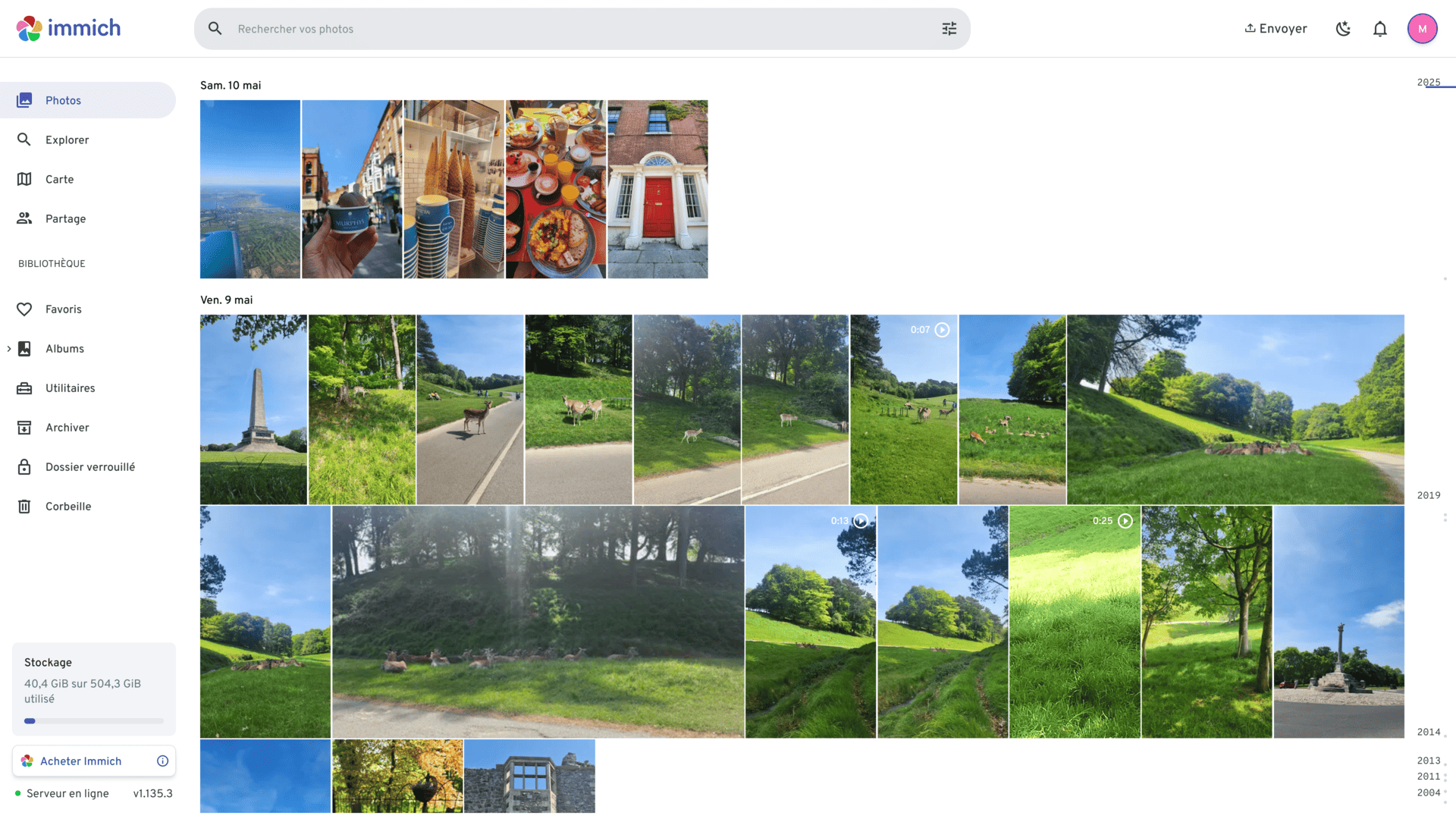
Photo & video support

Store, browse, and organize both photos and videos in one place, keeping all your memories accessible and secure.

👨‍👩‍👧

Multi user support

Share albums with family members, so everyone can view, add, and manage photos together in one private space.

📱

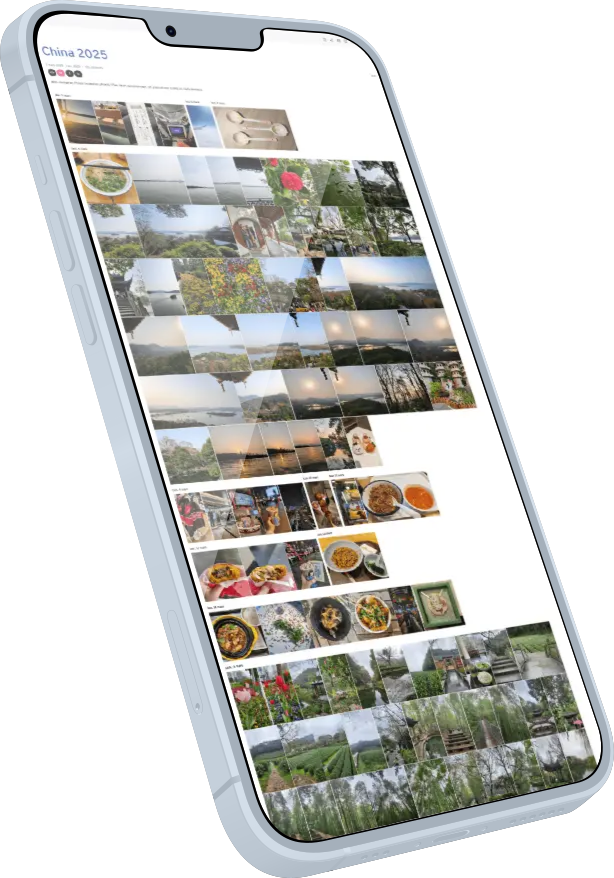
Mobile & web access

Access your photo library from any device, whether on your phone or through a web browser, anytime you need it.  

Install Immich on Yundera 
in 3 simple steps  

Learn how to quickly set up and start using our services with our step-by-step onboarding process.

Step 1. Install Immich from the App Store

One click installation, no configuration required

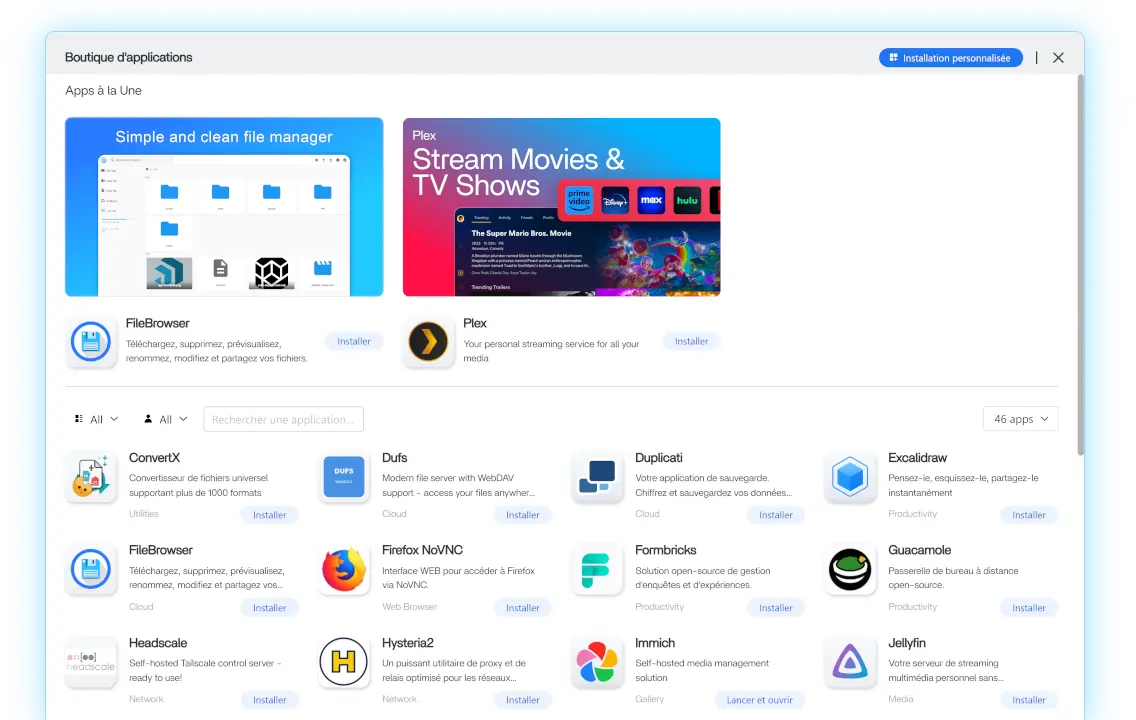
From your Yundera dashboard, open the App Store and search for Immich


Click Install to start the deployment.
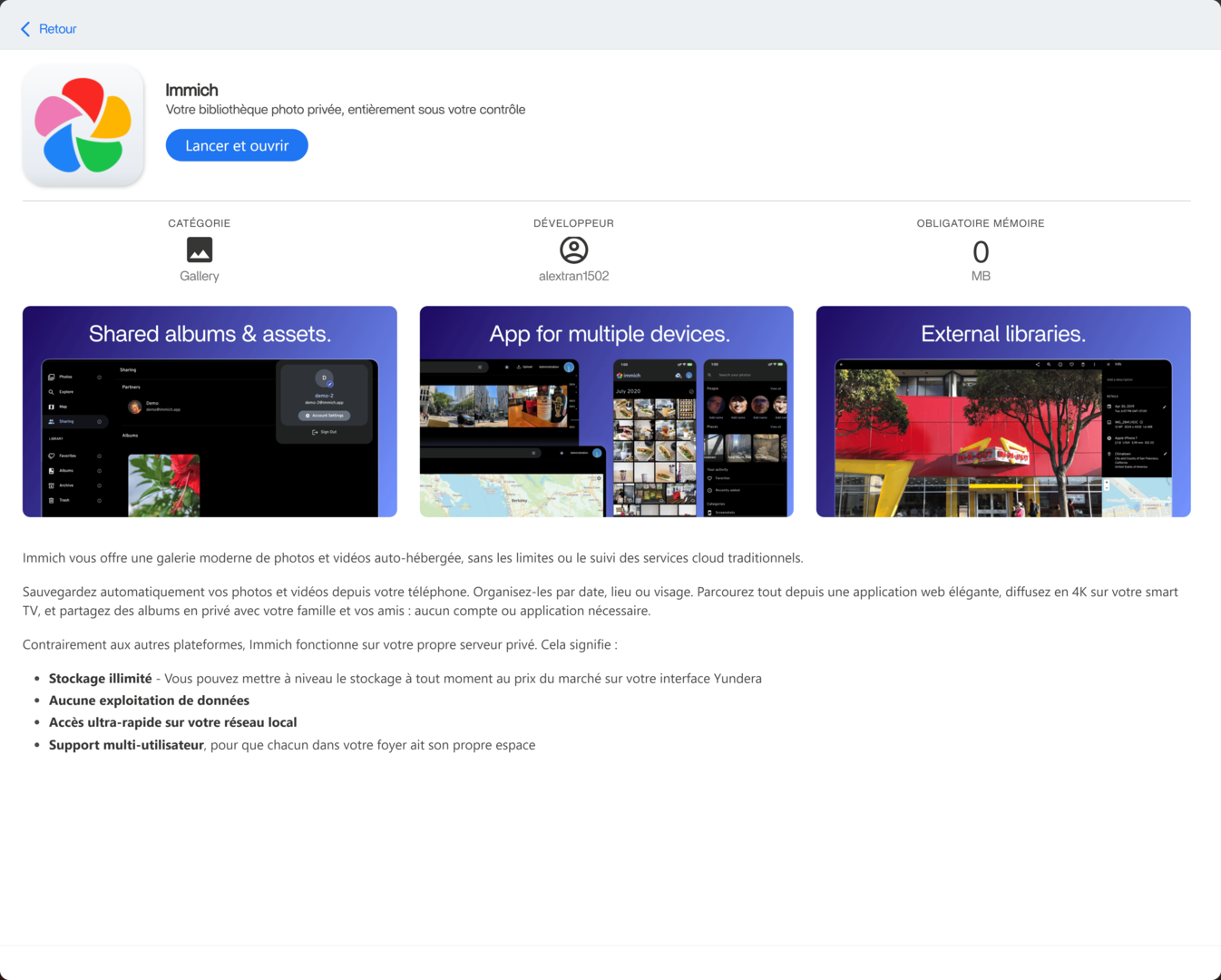
Yundera automatically sets up everything Immich needs to run properly, including services, storage connections, and internal configuration. You do not need to install Docker, manage databases, or edit any settings.

Once the installation starts, the system takes over.
Step 2. Wait for startup

Immich needs a few minutes to initialize

Immich takes approximately 5 minutes to fully start after installation.

During this time, several background services are launched, including the database and media processing components. This is normal and only happens the first time the app starts.

To avoid connection errors, simply wait a few minutes before opening the web interface. Once everything is ready, Immich will be fully operational.

Step 3. Open the Immich web interface

Secure your Immich server with your admin account

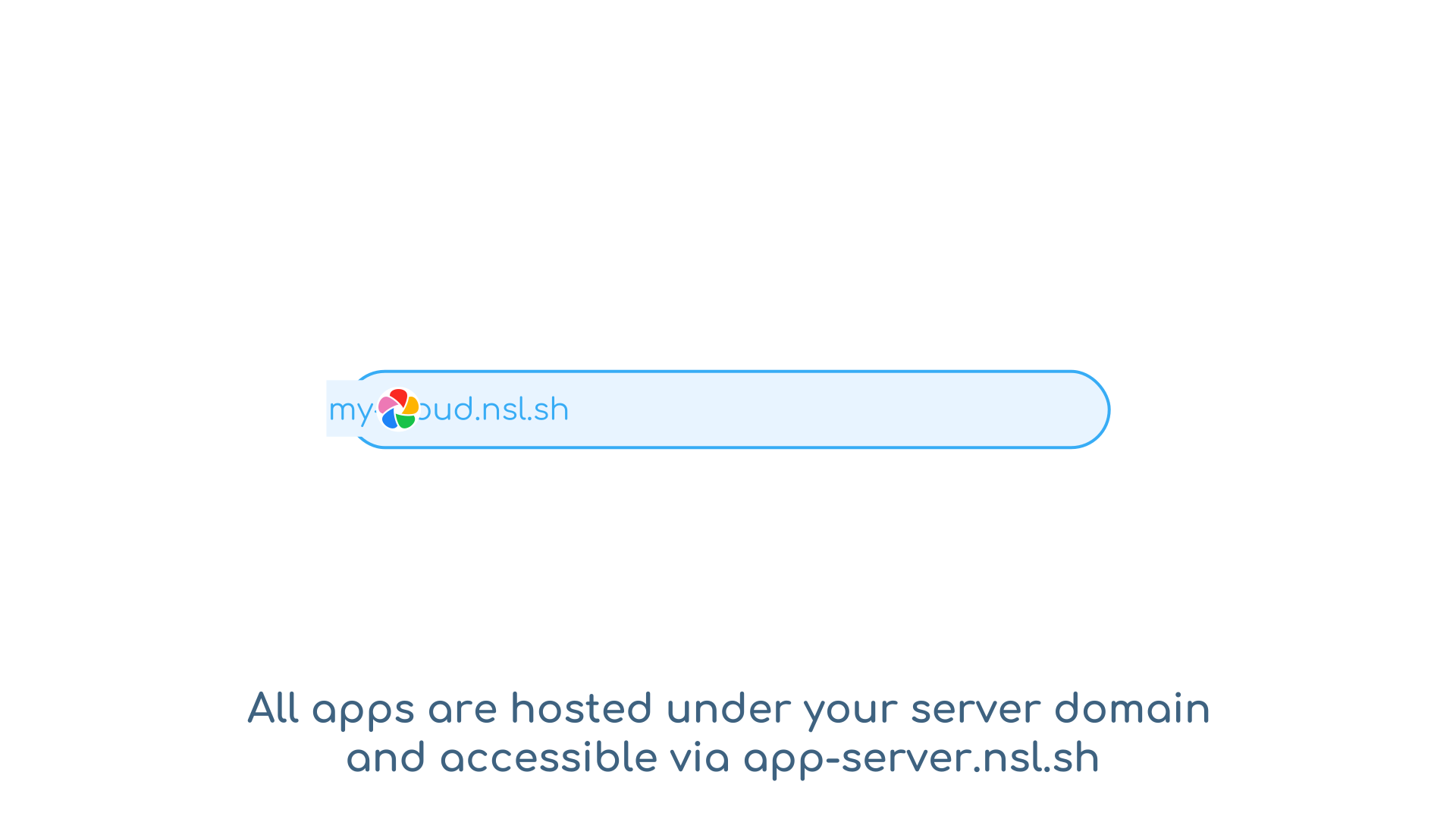
After startup is complete, click Open from the Immich app card in your Yundera dashboard.

You will be redirected to the Immich web interface.


On your first visit, Immich will ask you to create an admin account. This account is used to manage your photo library and server settings.

The admin account allows you to:

  • Access your photo and video library
  • Connect mobile devices
  • Create and manage shared albums
  • Add additional users later if needed

Once this step is done, Immich is ready to use.


Immich, installed in one click.


Mobile app setup

After installation:

  • Open Immich settings in the web interface
  • Display the QR code
  • Install the Immich mobile app
  • Scan the QR code

Your phone now backs up photos directly to your Yundera server.


Download for Phone

Mobile app setup

After installation:

  • Open Immich settings in the web interface
  • Display the QR code
  • Install the Immich mobile app
  • Scan the QR code

Your phone now backs up photos directly to your Yundera server.


Download for Phone