Skip to Content

ConvertX on Yundera

Your private file conversion tool

Convert files without sending them to external platforms. ConvertX runs on your own server, under your control.  

And with Yundera, installing ConvertX takes just a few clicks. No server knowledge required.


Get ConvertX and more

✽  What is ConvertX

A better way to 
convert your files 

📁

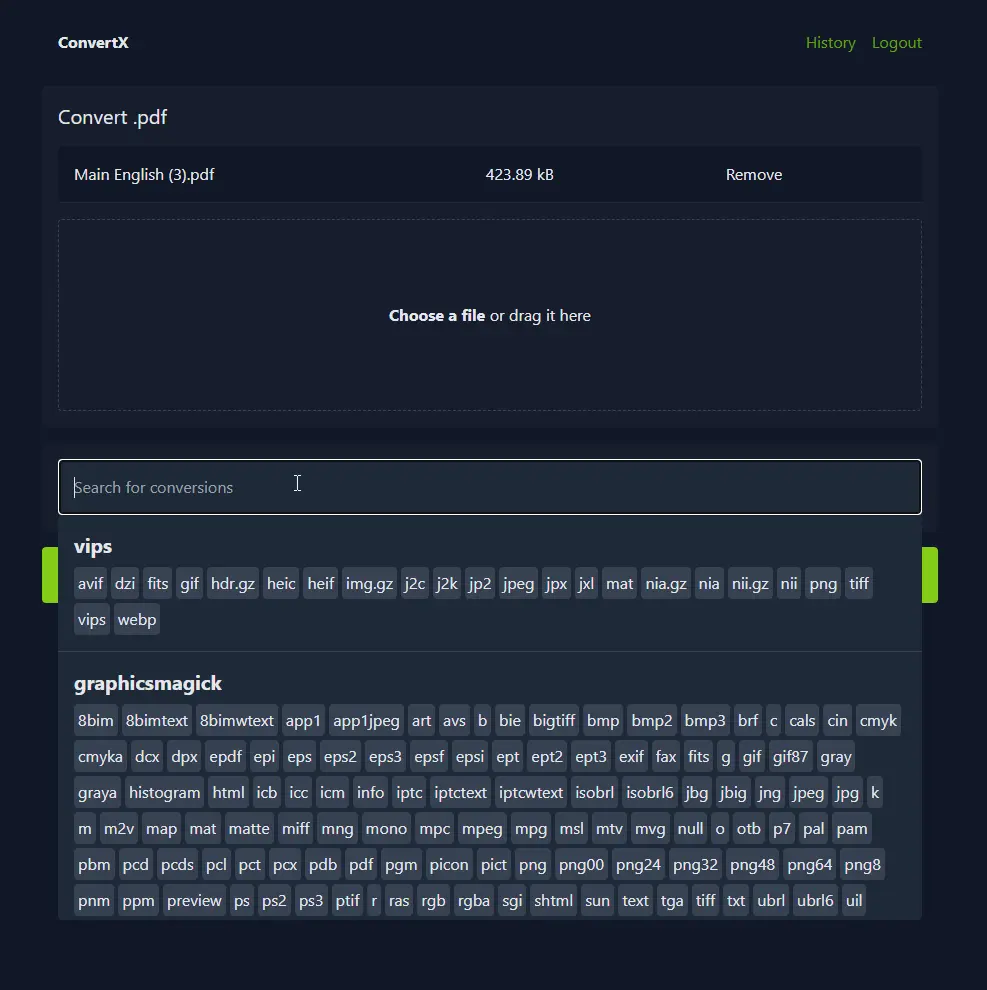
Multi-format file conversion

Convert documents, images, and files between common formats directly on your server, without using external tools.

🔒

Private and local processing

Files are converted locally on your Yundera server. Nothing is uploaded to third-party services.

🚀

Simple and efficient

ConvertX is lightweight, fast, and easy to use, even for occasional or large batch conversions.

Install ConvertX on Yundera 
in 3 simple steps  

Learn how to quickly set up and start using our services with our step-by-step onboarding process.

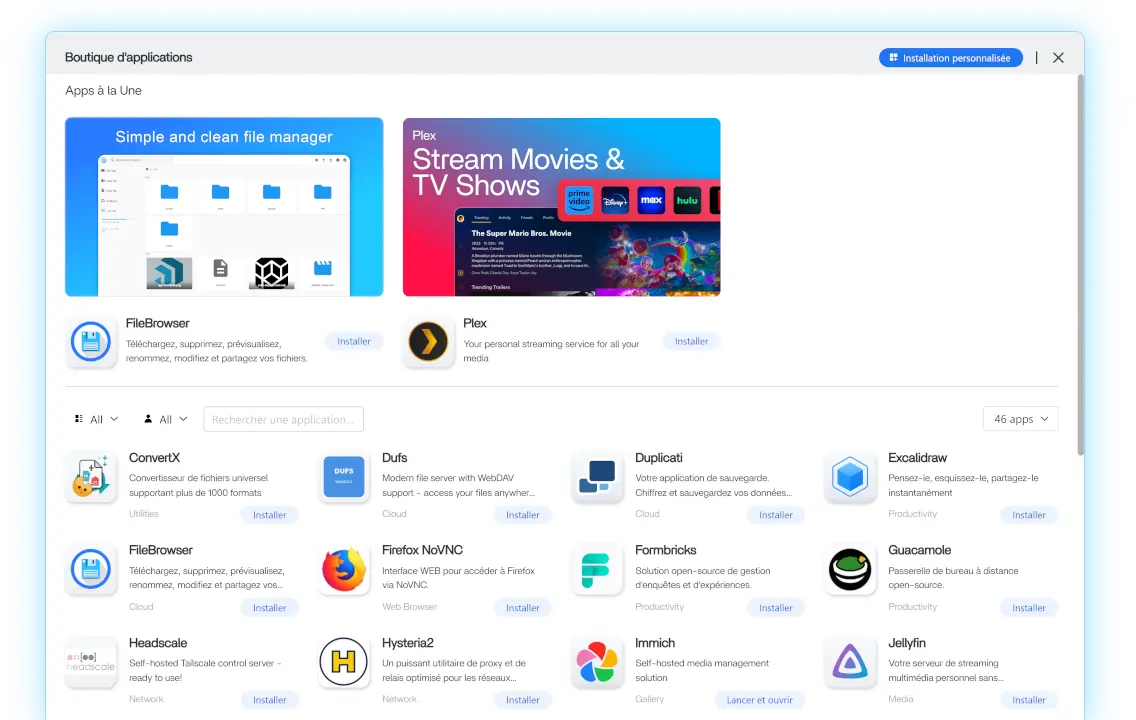
Step 1. Install ConvertX from the App Store

One click installation, no configuration required

From your Yundera dashboard, open the App Store and search for ConvertX


Click Install to start the deployment.
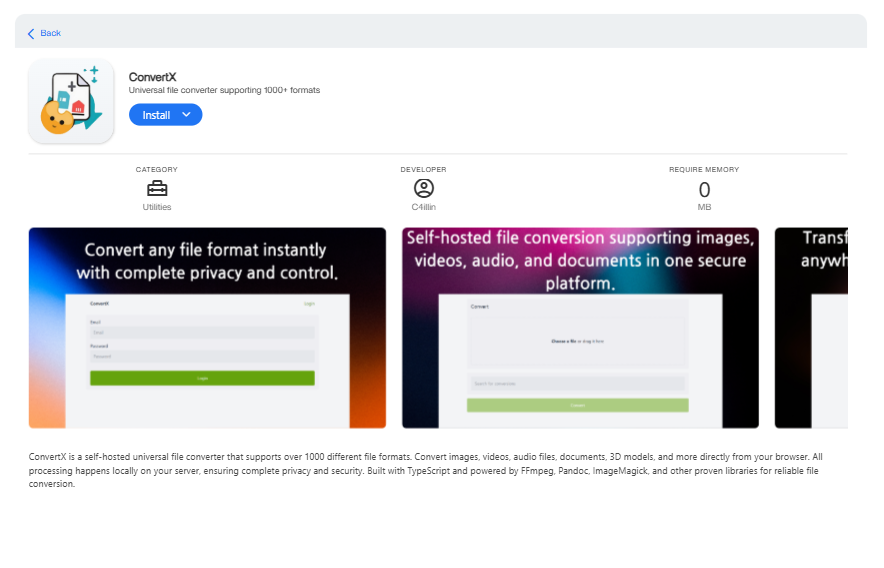
Yundera automatically sets up everything ConvertX needs to run properly, including the server, services, and internal configuration. You do not need to install Docker, configure services, or manage any technical settings.

Once the installation starts, Yundera takes care of the rest.
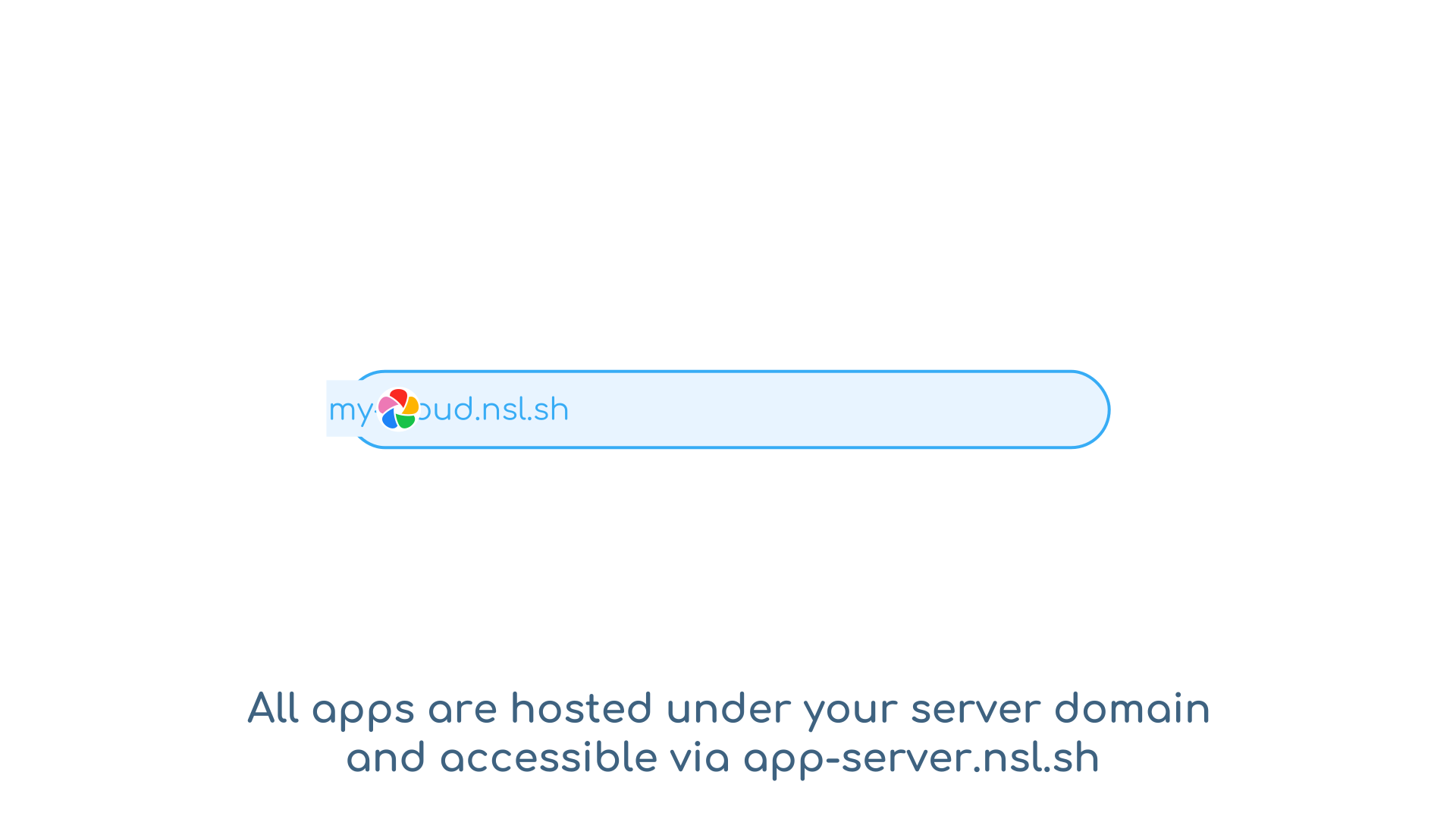
Step 2. Wait for startup

ConvertX needs a few minutes to initialize

ConvertX takes approximately 5 minutes to fully start after installation.

During this time, the service is initialized and the web interface is prepared. This only happens the first time the app starts.

To avoid connection errors, simply wait a moment before opening the web interface. Once everything is ready, ConvertX will be fully operational.

Step 3. Open the ConvertX web interface

First access and basic usage  

After startup is complete, click Open from the ConvertX app card in your Yundera dashboard.

You will be redirected to the ConvertX web interface.


On your first visit, ConvertX will ask you to create an account. The first account created automatically becomes administrator ​. No additional setup is required to start using ConvertX.


Once this step is done, ConvertX is ready to use.


Informations

You can find these informations in the tips panel by clicking on the app icon in the top right of the ConvertX app from your Yundera Dashboard.

Recommended converters (important)

When multiple converters are available for a format, we recommend using FFmpeg whenever possible.

  • FFmpeg (recommended): video, audio, and many image formats
  • ImageMagick: image conversions
  • LibreOffice / Pandoc / Calibre: document conversions (may be less reliable)

If a conversion fails, try selecting FFmpeg if it is available for that format.

File retention

  • Converted files are automatically deleted after 24 hours
  • This duration can be adjusted in the app configuration if needed

This keeps your storage clean by default.

Technical notes (for transparency)

  • ConvertX runs with elevated permissions to ensure proper access to its internal SQLite database
  • HTTP access is enabled automatically for compatibility with the Yundera routing system

No action is required from you for these settings.

ConvertX, installed in one click.