Skip to Content

Odoo with Yundera


Your alternative to Webflow and more...

Odoo is a powerful open source business platform that lets you manage invoicing, customers, operations, and even build your own website, all from one place. 

With Yundera, it installs in minutes without server configuration.


Get Odoo and more

✽  What is Odoo

A better way 
to run your business 

🧾

Business management tools  

Manage invoicing, accounting, CRM, sales, and operations from a single platform, keeping all your business data organized in one place.

🌍 

Website & online presence 

Build and manage your business website, online forms, and customer portals directly from Odoo, connected to your business data.

 🏢

Multi user & team access  

Work with your team by giving access to the right tools and information, so everyone can collaborate securely on the same system.

Install Odoo on Yundera 
in a few minutes  

Learn how to quickly set up and start using our services with our step-by-step onboarding process.

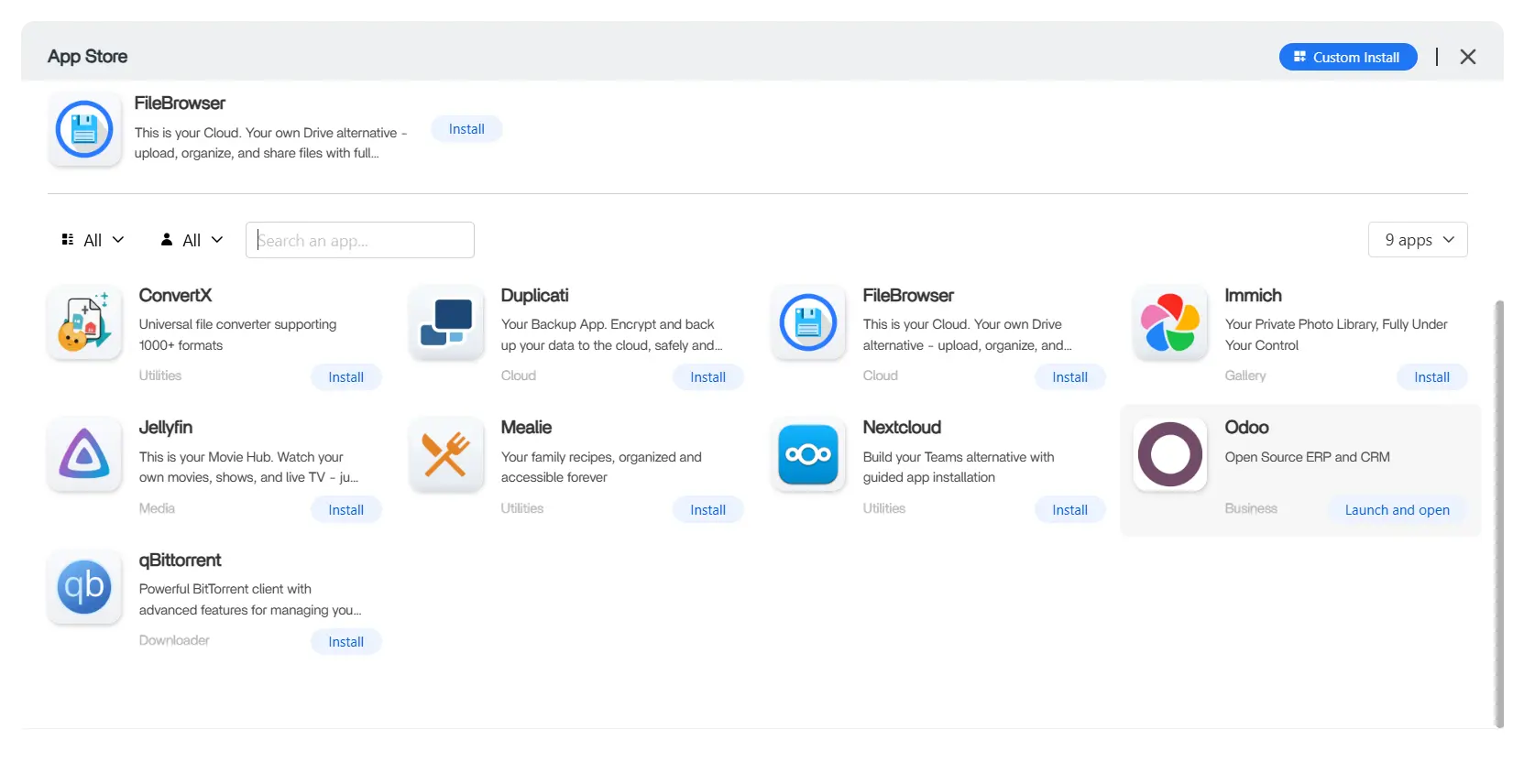
Step 1. Install Odoo from the App Store

One click installation, no complicated configuration required

From your Yundera dashboard, open the App Store and search for Odoo​


Click Install to start the deployment.
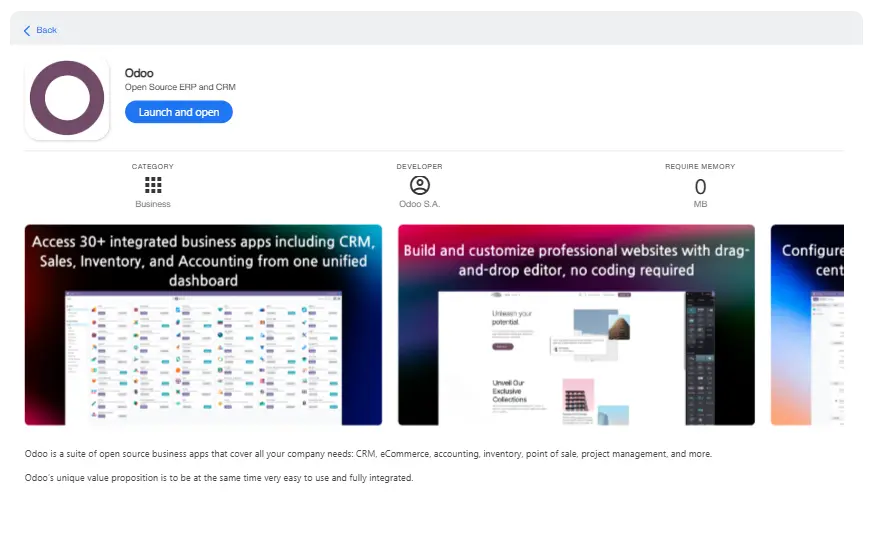
Yundera prepares the server and services for Odoo automatically. You only need to create your database on first access.

Step 2. Wait for startup

Odoo needs a few minutes to initialize

Odoo takes approximately 5 minutes to fully start after installation.

During this time, Odoo prepares the environment needed to create your database.

To avoid connection errors, simply wait a few minutes before opening the web interface. Once it's ready, Odoo will just need one more step before being fully operational.

Step 3. Open the Odoo web interface

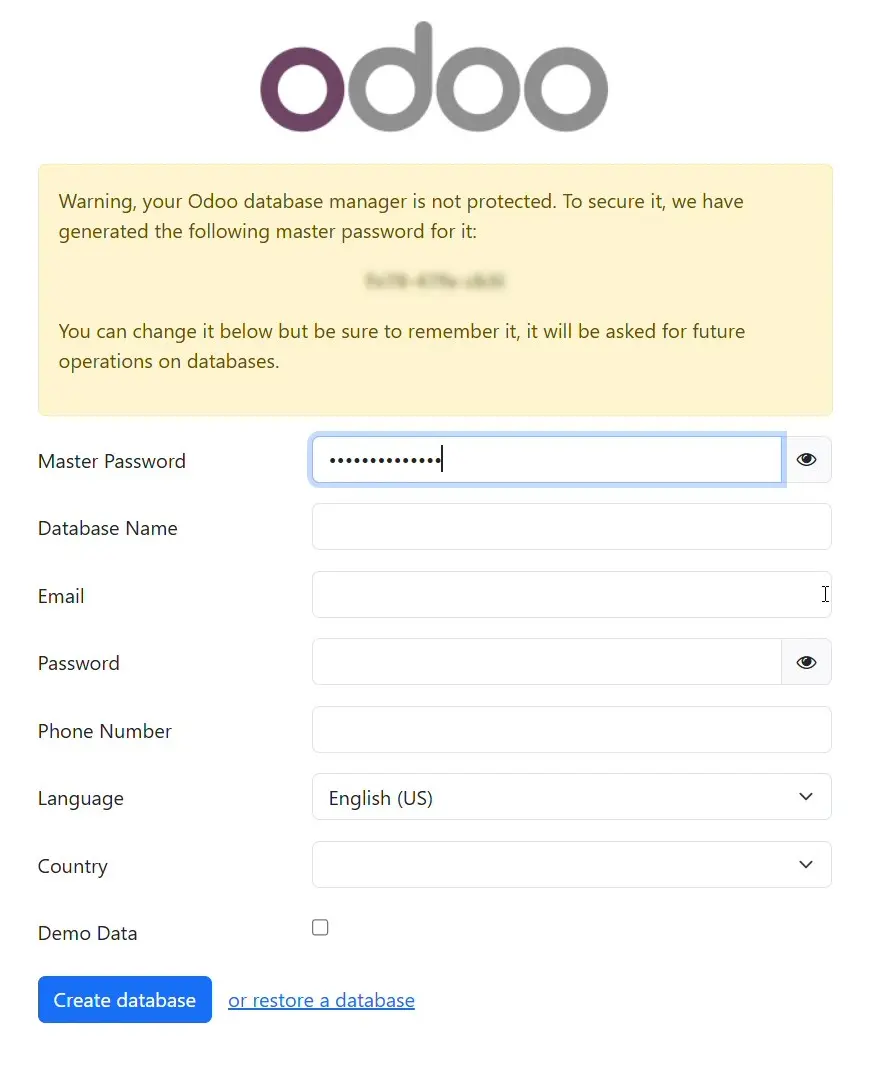
First access configuration: Create your Odoo database.

After startup is complete, click Open from the Odoo app card in your Yundera dashboard.

You will be redirected to the Odoo web interface.


On first access, Odoo will ask you to create your database.

Use the following information:

ElementValue
Master Password Provided by Yundera*
Database Nameodoo
EmailEnter our admin email address
PasswordChoose your admin account password
LanguageSelect your preferred language
CountrySelect your country

*  The Master Password is automatically generated by Yundera. You can find it:

- In the tips panel by clicking on the detail icon in the top right of the Odoo app from your Yundera Dashboard

- Directly on the database creation page when you access Odoo for the first time


Once the form is completed, click Create Database. You can now start installing apps and configuring your business workflows


Odoo, installed in one click.