OneDrive Alternative: Leave Microsoft Without Losing Your Files

To leave OneDrive without losing anything, start by bringing all your files back to your computer. Then handle OneNote notebooks and shared files separately, and move everything to storage whose hosting you control. Only turn off Windows' automatic backup after you've checked the copy. Otherwise, some files may stay behind in Microsoft's cloud or vanish from your drive.
Key takeaways:
- With Files On-Demand, OneDrive shows some files on your PC without them actually being there. The “Always keep on this device” option downloads them before the migration.
- On the website, downloading several items at once produces a .zip archive limited to 10,000 files, and OneNote notebooks can't be downloaded this way.
- Windows 11 may switch on backup of your Desktop, Documents and Pictures folders to OneDrive by default. Check these folders before you turn anything off.
- In June 2025, speaking before the French Senate, Microsoft France said it could not guarantee that French customers' data would never be handed over to US authorities, because of the CLOUD Act.
- The GDPR right to data portability lets you get your data in a structured, machine-readable format, but making a copy yourself is still the fastest route.
Table of Contents
- Why look for a OneDrive alternative in 2026?
- How do you know which files are really on OneDrive?
- How do you get all your OneDrive files back without missing any?
- What about OneNote notebooks and files shared with you?
- What are the OneDrive alternatives for individuals and small businesses?
- How do you turn off OneDrive backup in Windows 11 without losing anything?
- How do you set up sync and sharing again after the migration?
- Does the GDPR help you get your data back from Microsoft?
- Yundera: a private server in France to replace OneDrive
- The most common mistakes when leaving OneDrive
- Sources
- Frequently Asked Questions
Why look for a OneDrive alternative in 2026?
Three reasons come up again and again among people leaving OneDrive: US law applies to your files, the free storage fills up fast, and Windows turns on backups without asking you. None of them forces you to leave overnight, but each one is worth weighing.
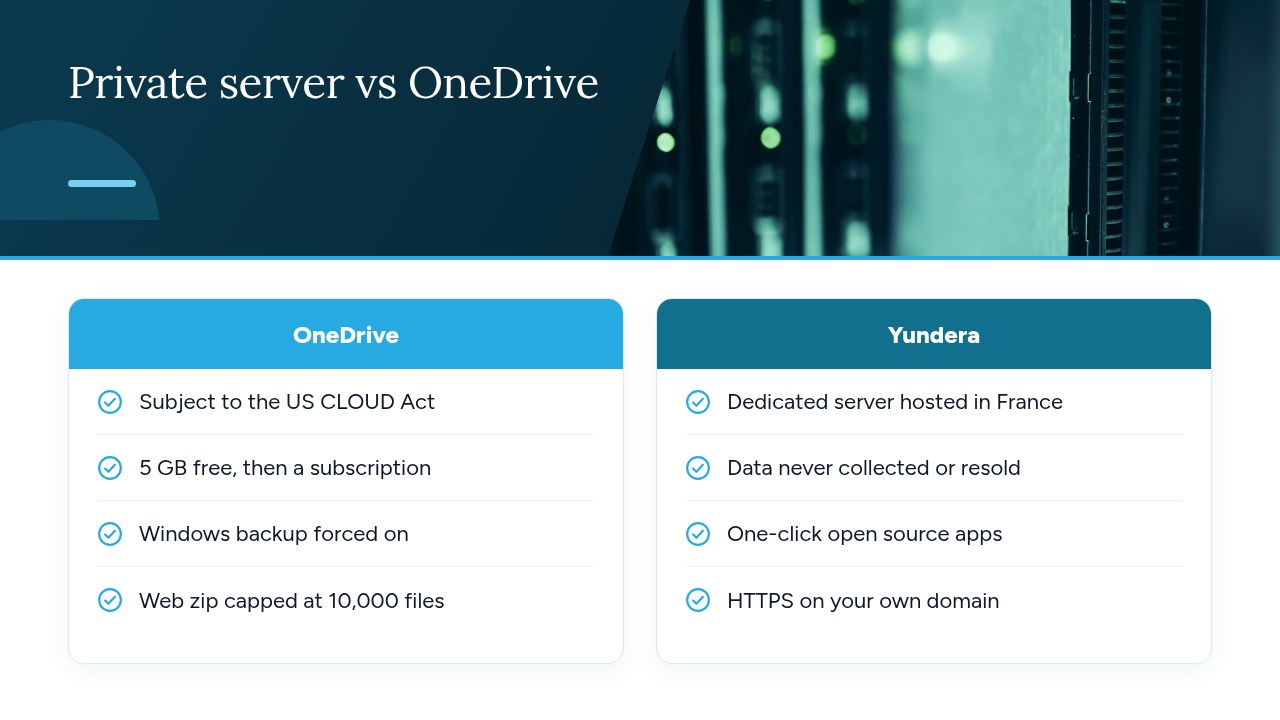
- Applicable law: the CLOUD Act, a 2018 US federal law, requires US providers to hand over data requested by US courts, “regardless of where the servers are physically located”. In June 2025, Anton Carniaux of Microsoft France testified under oath before the French Senate. Asked whether he could guarantee that French customers' data would not be passed to US authorities without France's consent, he said no. The issue goes beyond Microsoft: the big US providers hold nearly 69% of the cloud market in Europe.
- Cost: Windows includes 5 GB by default, versus 1 TB with an Office 365 subscription. A few years of photos and documents quickly blow past the free quota, and suddenly you're a subscriber.
- Loss of control: according to Le Monde Informatique, after an update Windows 11 started forcing OneDrive backups without the user's explicit permission. Your personal folders can end up in the cloud without you ever deciding to put them there.
Pro tip: before choosing an alternative, write down which of these three reasons matters most to you. If it's applicable law, look first at where the service is hosted and which country the provider answers to. If it's cost, compare the price per terabyte.
How do you know which files are really on OneDrive?
To find out what your OneDrive actually holds, take inventory in two steps: identify which folders on your PC Windows is syncing, then check which files are really stored on your drive. Skip this and you risk migrating an incomplete copy without noticing.
- Folders backed up by default: according to Le Monde Informatique, Windows 11 can start backing up to OneDrive without the user's explicit permission. Everyday folders like Desktop, Documents or Pictures may therefore be in the cloud without your having chosen it. In OneDrive settings, the “Manage backup” section shows which ones are affected.
- Files On-Demand: a file you can see in File Explorer isn't necessarily stored on your drive. According to Microsoft, only files set to “Always keep on this device” show a solid green circle with a white check mark. The others may exist only online. This feature has been around since Windows 10 1709, so it applies to almost every PC in use today.
- Your baseline: on onedrive.com, note the storage used and the number of files in your main folders. You'll use these figures to check the final copy.
Pro tip: save these figures in a plain text file with today's date. If a discrepancy shows up after the transfer, you'll know which folder to look in.
How do you get all your OneDrive files back without missing any?
The safest way to get everything back is to force the OneDrive app to download all your files to your PC, then check the copy before moving it. Downloading from the website works in a pinch for a few folders, but it has limits.
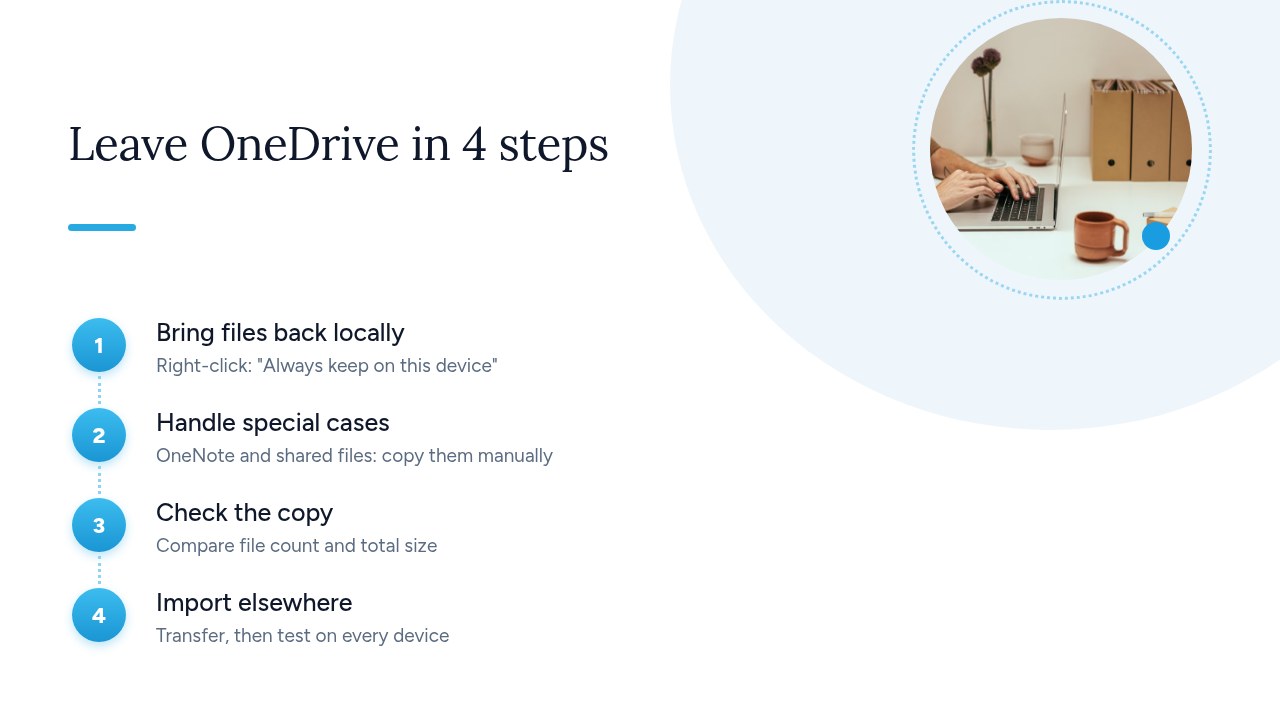
- Bring files local: in File Explorer, right-click the OneDrive folder and choose “Always keep on this device”. Wait for syncing to finish: every file should show the green circle with a white check mark. Make sure your drive has enough free space first.
- Handle the special cases: OneNote notebooks and files shared with you need to be copied manually. The next section covers them.
- Check the copy: right-click the folder, then
Propriétés. Compare the file count and total size with the figures you noted on onedrive.com. - Import elsewhere: move the folder to the new service, then check you can access it from every device.
On the website, just select items and click Download to get a .zip file. Microsoft does set limits, though: 250 GB per file, 10,000 files in total and 10,000 files per folder. Beyond that, use the desktop app instead.
Pro tip: copy the OneDrive folder to an external drive before touching any settings. That backup protects you if a sync glitch deletes files along the way.
What about OneNote notebooks and files shared with you?
OneNote notebooks and files shared with you don't come out with a standard download: you have to retrieve them one by one, from the app or from their owner. This is also where most things get forgotten.
- OneNote notebooks: Microsoft states that you can't download OneNote notebooks from OneDrive. Open each notebook in the OneNote desktop app and use the export feature. Choose PDF for an archive you can read anywhere, and the native OneNote format if you plan to reopen your notes in OneNote.
- Files in the “Shared” view: according to the same Microsoft page, these can't be downloaded directly from that view. Open each file, then save a copy to your own storage or to your PC.
- Large shared folders: these files belong to someone else, and your access depends on their account. Rather than copying hundreds of documents by hand, ask the owner to send them to you or share them from the new service.
Your Word, Excel and PowerPoint documents, on the other hand, are no problem. The .docx, .xlsx and .pptx formats are based on the open OOXML standard, which LibreOffice and OnlyOffice can open and edit. So you don't lose access to your files when you leave Microsoft 365.
Pro tip: open a few random PDFs exported from OneNote before deleting the original notebooks. Very long pages, or pages packed with attachments, are the ones that export worst.
What are the OneDrive alternatives for individuals and small businesses?
Three families of solutions can replace OneDrive: a European cloud run by a provider, open-source software installed on your own hardware, or a managed private server that runs that same open-source software for you. The right choice depends mostly on how much time you can spend on the technical side and how much control you want.
- Consumer European cloud: it works like OneDrive and takes minutes to set up. You're still the customer of a provider that sets the rules, the prices and the export terms, though.
- Self-hosted open-source software: Nextcloud or Seafile, installed on a NAS or mini PC, give you full control. In return, updates, backups, security and remote access are all on you.
- Managed private server: you get the same open-source software on a server dedicated to you, without having to maintain it. This option suits individuals and small businesses who want control without the technical skills.
Whichever family you choose, check five things:
- Law and hosting: the country where the servers are and the country of the provider.
- Sync: clients for Windows, macOS, Android and iOS.
- Sharing: links with passwords and expiry dates.
- Online editing: the ability to open and edit office documents in the browser.
- Reversibility: a full export available at any time, in standard formats.
For a detailed comparison of the options, see our article Google Drive Alternative: Which Sovereign Options in 2026?
How do you turn off OneDrive backup in Windows 11 without losing anything?
To turn off OneDrive backup without losing anything, follow a strict order: first confirm the local copy is complete, then turn off backup, and only delete online files last. If you swap these steps, folders on your PC may look empty while their contents exist only in the cloud.
- Check the copy: compare the file count and total size with the figures you noted on onedrive.com, as described above.
- Turn off backup: open OneDrive settings, then “Sync and backup” and “Manage backup”, and turn off each affected folder. Once backup stops, files that were already backed up may exist only in OneDrive: reopen Desktop, Documents and Pictures to check they're still on your drive.
- Clean up your online storage: delete your files from OneDrive only once the new solution is working. If something goes wrong, the recycle bin keeps items for 30 days on OneDrive Personal and 93 days on OneDrive for work or school.
- Unlink, then uninstall: in the Account tab of OneDrive settings, choose “Unlink this PC”. If you like, you can then uninstall the app from Windows Settings, under Apps.
Pro tip: wait until the recycle bin period is over before closing your Microsoft account. If a file turns out to be missing, you can still restore it.
How do you set up sync and sharing again after the migration?
After the migration, rebuild your workflows in this order: sync on each device, then sharing, then team organization, and finally backup. The files have been copied, but your habits and links still need to be recreated.
- Sync: install the new service's client on every PC, Mac and phone. Make sure automatic photo upload from your phone now goes to the new service rather than to OneDrive.
- Sharing links: old OneDrive links will stop working once you delete the files or close the account. Recreate the links you need and send them to your contacts, clients and suppliers. Take the opportunity to set a password or an expiry date.
- Small business organization: write the team folder structure down on one page, for example Management, Accounting, Projects and Archives. Assign permissions by group rather than by person, and name someone responsible for approving access and handling departures.
- Separate backup: a sync service is not a backup. Follow the 3-2-1 rule: three copies, on two different media, with one off-site. Our guide Self-Hosted Encrypted Backup: The Jargon-Free Guide walks through the method.
- Transition period: stop adding anything to the old account, but keep it for a few weeks. It will be your safety net if a file turns up missing.
Pro tip: during the transition, rename the leftover OneDrive folder on your PC, for example to “OLD OneDrive – do not use”. This simple marker keeps a colleague from saving files there out of habit.
Does the GDPR help you get your data back from Microsoft?
Yes, the GDPR gives you a right to data portability, but it's no substitute for copying your files yourself. It's mainly useful for getting what you can't see in File Explorer: metadata, history and information tied to your account.
- A usable format: according to the CNIL, data must be provided in a “structured, commonly used and machine-readable” format, such as CSV or JSON.
- A limited scope: this right only covers data processed by automated means, based on your consent or the performance of a contract. That's usually the case for a OneDrive subscription.
- Direct transfer: you can ask for your data to be sent directly to another organization. If the provider refuses, it must explain why the transfer is technically impossible.
- Recourse: if your request is refused or goes unanswered, you can file a complaint with the CNIL. Include proof of your request, such as a screenshot or the reply email.
In practice, download your documents, photos and folders with the desktop app, as described above: it's much faster. Save the GDPR request for your account history and any data you can't export yourself. Our article Get Your GDPR Data Back Within 1 Month explains the process.
Pro tip: send your request at the start of the migration rather than waiting until the end. You'll get the reply while you're reorganizing your files, not after the account is closed.
Yundera: a private server in France to replace OneDrive
Once your files are back in hand, Yundera lets you put them on a managed private server, the Personal Cloud Server. It's hosted in France and dedicated to a single customer: you don't share space with other users, and you know where your data lives. That data stays on your server: Yundera doesn't collect it or sell it. This is the third family of solutions described above: open-source software with no maintenance on your end.
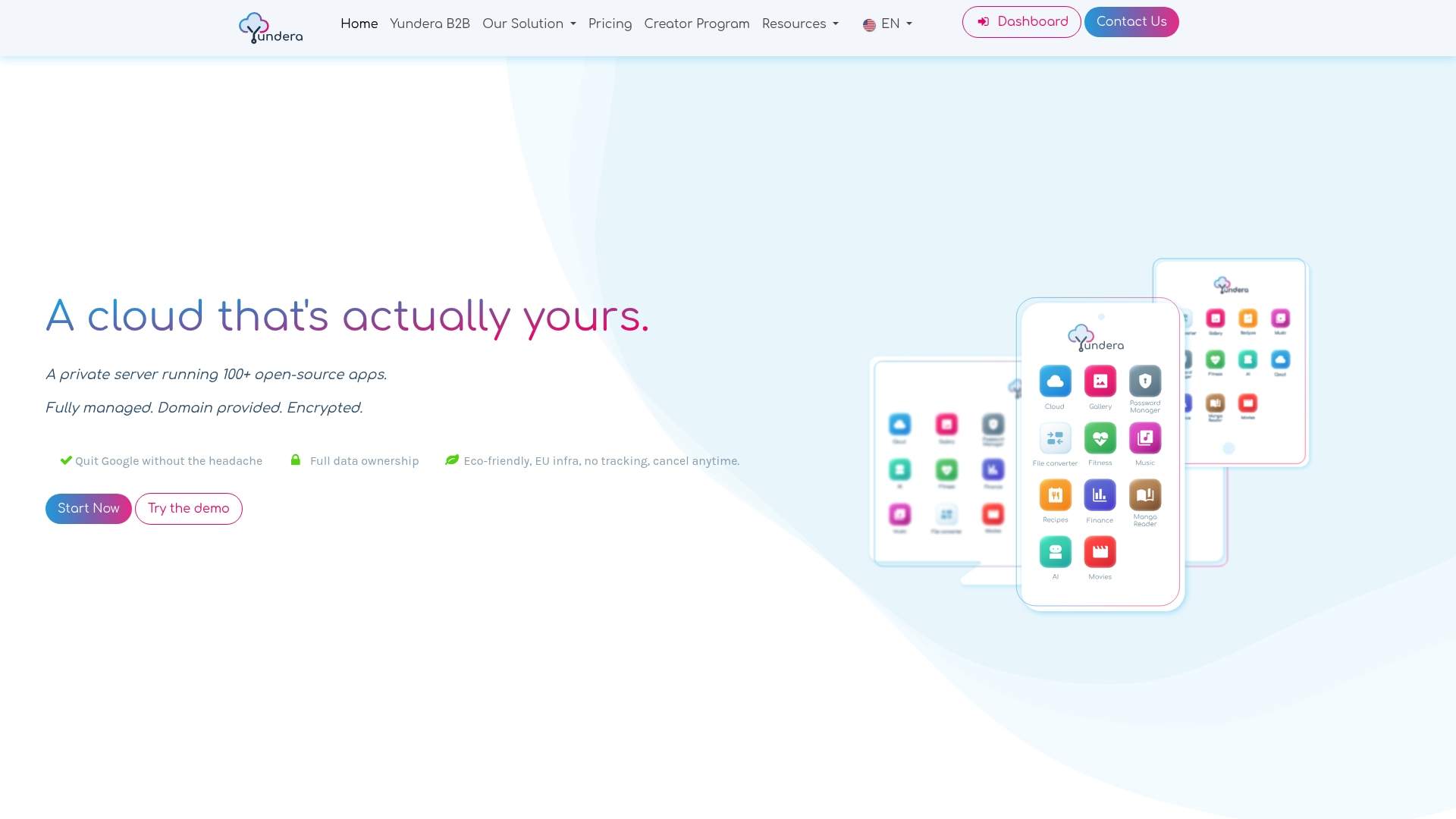
The server comes with ready-to-use open-source apps: file storage, photos, office tools, website hosting and more. Each one installs in a click from an app store. They're available on your own domain over HTTPS, with no static IP, no port forwarding and no certificates to configure. No technical skills are needed, because Yundera manages the server. You upload the folder you verified during the migration, then pick up your sharing and office routines where you left off. To see how this option compares with the others, our article Google Drive Alternative: Which Sovereign Options in 2026? compares the main solutions.
Before deciding, make sure the offer fits your actual needs: the data volume you noted during your inventory, the number of users and the apps you can't do without. For plans and pricing, see the Yundera private servers page.
The most common mistakes when leaving OneDrive
Most file losses when leaving OneDrive have the same cause: cutting things off before checking. Here are the six most common mistakes.
- Cutting off too early: turning off backup or unlinking the PC before checking the local copy.
- Copying empty shells: moving on-demand files that aren't stored on the drive, instead of downloading them first with “Always keep on this device”.
- Forgetting the special cases: leaving out OneNote notebooks and files shared with you.
- Relying on a single .zip: web downloads are limited to 10,000 files.
- Closing the account too soon: before the recycle bin period, 30 or 93 days, has run out.
- Leaving dead links: not telling your contacts that old sharing links will stop working.
Remember one simple rule: copy, verify, and only then cut off. Stick to it and you can leave Microsoft without losing a single file.
— Yundera
Sources
- Download files and folders from OneDrive or SharePoint | Microsoft Support
- Save disk space with OneDrive Files On-Demand for Windows | Microsoft Support
- Microsoft forces automatic OneDrive backups - Le Monde Informatique
- Microsoft admits it: your data in Europe is not safe from the US - Génération NT
- The right to data portability: obtain and reuse a copy of your data | CNIL
Frequently Asked Questions
How do I get all my OneDrive files onto my PC?
In File Explorer, right-click the OneDrive folder, choose “Always keep on this device”, then wait for syncing to finish. Every file should then show a green circle with a white check mark. For a few folders, the website is enough, but a .zip there is limited to 10,000 files and doesn't include OneNote notebooks.
If I turn off OneDrive, will I lose my files?
Not necessarily, but on-demand files or files that were already backed up may exist only in the cloud, and so be missing from your PC. Download everything locally and check the file count and total size before turning off backup. If something goes wrong, the OneDrive recycle bin keeps deleted items for 30 days on Personal and 93 days on work accounts.
What is the best OneDrive alternative hosted in France?
It depends on your time and skills: a European cloud run by a provider, open-source software like Nextcloud or Seafile on your own hardware, or a managed private server. Compare hosting location, sync clients, sharing, online editing and the ability to export at any time. Yundera, for example, offers a managed private server hosted in France and dedicated to a single customer, with open-source apps that install in one click.
Is OneDrive GDPR-compliant for a business?
OneDrive can be used within a GDPR framework, but the business remains the data controller and must assess the risk of foreign access. The CLOUD Act requires US providers to hand over requested data, wherever the servers are located. Before the French Senate, Microsoft France acknowledged that it could not guarantee this data would never be passed to US authorities.
How do I remove OneDrive from Windows 11 without deleting my documents?
Start by downloading all your files locally, then turn off backup in OneDrive settings, under “Sync and backup” and then “Manage backup”. Next, choose “Unlink this PC” in the Account tab, then uninstall the app from Windows Settings, under Apps. Your local files stay on the drive: just check that Desktop, Documents and Pictures still have their contents.
OneDrive Alternative: Leave Microsoft Without Losing Your Files