NAS or Cloud: Which Should You Choose to Store Your Data in 2026?
A NAS doesn't replace the cloud, and the cloud doesn't replace a NAS. A NAS keeps your files at home or in the office, with fast local access, but it won't protect you from a disaster on site or from ransomware. The cloud gives you a copy somewhere else, but you no longer really control your data. The right choice depends on how much data you have, how much time you can spend on administration, and how much data sovereignty matters to you. In most cases, the answer is a combination of the two that follows the 3-2-1 rule recommended by the CNIL, France's data protection authority.
Key takeaways:
- A NAS on its own is not a backup: if it's hacked, stolen or destroyed, every copy it holds disappears at the same time.
- The CNIL recommends keeping at least one backup at a geographically separate site and at least one offline copy, disconnected from the network.
- NAS devices exposed to the Internet are real targets: in January 2022, the DeadBolt ransomware encrypted the data on more than 3,600 QNAP NAS devices, some of them in France.
- Cloud sync is not a backup: a file deleted or encrypted on your computer can be deleted or encrypted in the cloud too.
- A backup is only worth something if you've restored from it at least once: regularly test getting your files back.
Table of Contents
- NAS or cloud: what's the real difference?
- Is a NAS a good enough backup?
- What are the security risks of a NAS at home?
- Does consumer cloud storage really protect your data?
- How do you apply the 3-2-1 rule with a NAS and the cloud?
- NAS or cloud: what does it really cost over 5 years?
- Which option should you choose: individual, freelancer or SMB?
- How do you check that a restore really works?
- Yundera: a managed private server between a NAS and the cloud
- NAS or cloud: the most common mistakes
- Sources
- Frequently Asked Questions
NAS or cloud: what's the real difference?
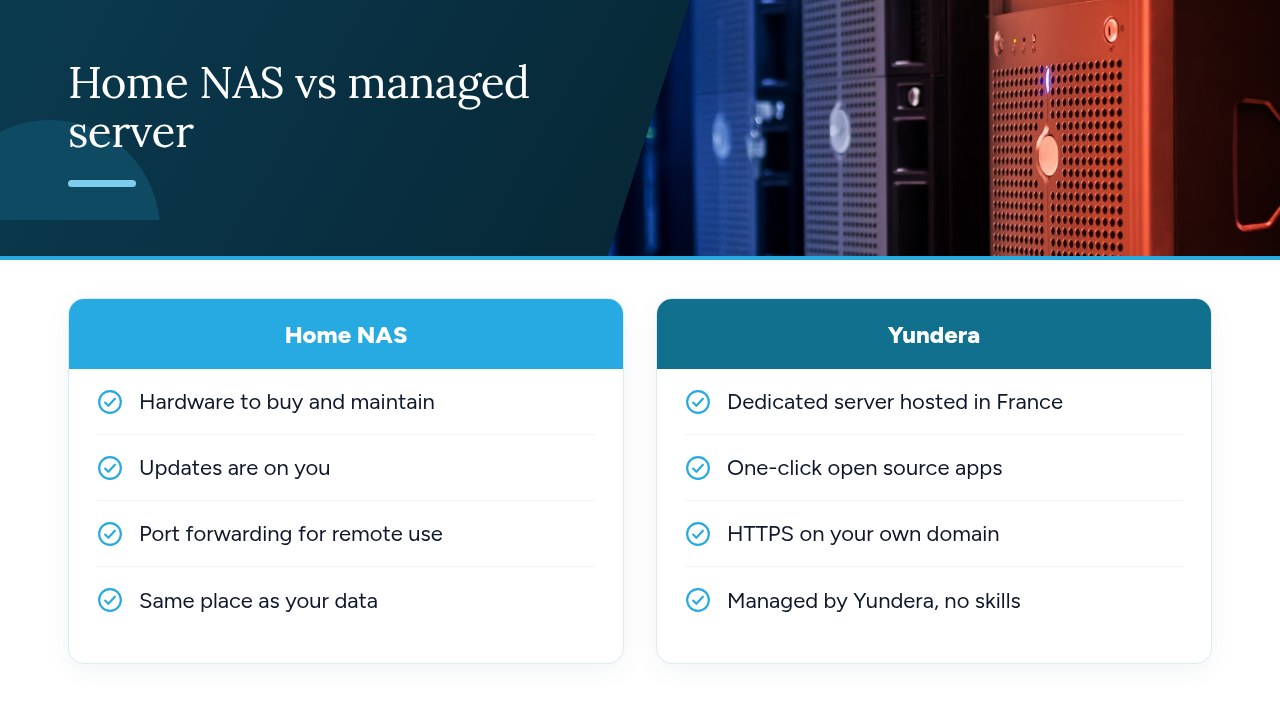
A NAS stores your files on your premises, on a device you own. The cloud stores them with a provider, in exchange for a subscription. With a NAS, you buy the hardware (the enclosure and its drives), plug it into your local network and maintain it yourself. With the cloud, you rent space on a company's servers and access it over the Internet. The difference shows up in five areas.
- Where the data lives: in your office or living room with a NAS; with the cloud, in a data center whose country you don't always get to choose.
- Who controls it: you alone with a NAS; with the cloud, the provider sets the terms of use, the pricing and the export options.
- Access speed: a NAS is very fast on the local network, but remote access depends on your connection and takes some configuration. The cloud is available anywhere, but it's limited by your bandwidth, even at the office.
- Room to grow: with a NAS, you're limited by the number of drive bays and you have to buy drives. With the cloud, you just switch plans.
- Maintenance: with a NAS, updates, drive replacements, security and electricity are all on you. With the cloud, there's nothing to maintain, but you depend on the provider.
There's a third option: the hosted private server. It's a machine dedicated to a single customer, installed in a data center and administered by a provider. As with a NAS, you keep a machine and data that belong to you alone. As with the cloud, you also get remote access and someone else handles maintenance.
Is a NAS a good enough backup?
No, a NAS is not a good enough backup if it's your only copy. RAID spreads your data across several drives so the device keeps working if one of them fails. So it protects against a drive failure, and nothing else:
- Deletion: a file deleted by mistake is instantly deleted on every drive in the RAID array.
- Ransomware: files encrypted by an attacker are copied in their encrypted form to every drive.
- Theft: if the device disappears, the drives and every copy go with it.
- Fire or water damage: a disaster destroys the NAS along with the computers it's supposed to protect.
Drive failures do happen. According to Backblaze's 2024 statistics, covering more than 300,000 drives at the end of 2024, the average annualized failure rate was 1.57%. Backblaze adds that if you only have one drive, your personal failure rate is 100%. Its conclusion: always have a backup, and remember to test it.
The CNIL says the same thing for organizations. In its guidance on backups, it advises against keeping backups on the same systems as the data being backed up without isolating them, because ransomware could reach both. It also advises against storing them in the same place as the machines that host the data.
Pro tip: treat your NAS as your primary copy, not as your backup. Keep at least one other copy somewhere else, isolated from your network.
What are the security risks of a NAS at home?
The biggest risk with a NAS at home is having it exposed to the Internet without keeping it up to date. Ransomware aimed at NAS devices looks for exactly these machines. The DeadBolt case shows this clearly. In late January 2022, Le Monde Informatique reported that the contents of more than 3,600 QNAP NAS devices had been encrypted, in France as well as in the United States, Taiwan, the United Kingdom and Italy. The attackers demanded around $1,100 for the decryption key. QNAP responded by forcing the installation of a patch, firmware 5.0.0.1891.
The attacks resumed in June 2022. IT-Connect reported that this campaign targeted QNAP NAS devices running QTS 4.x. QNAP asked its customers not to expose their NAS devices to the Internet. The article's verdict is blunt: “If you don't have a backup of your data, the only option will be to pay the ransom.” DeadBolt also hit ASUSTOR NAS devices, and QNAP NAS devices have been targeted by other campaigns, such as Qlocker and eCh0raix.
There are three practical lessons to draw from this:
- Updates: turn on automatic updates for the NAS operating system and its apps, and replace any model its manufacturer no longer supports.
- Open ports: don't expose the NAS admin interface to the Internet. For remote access, use a VPN instead.
- Admin passwords: disable the default account, pick a long, unique password, and turn on two-factor authentication if it's available.
Does consumer cloud storage really protect your data?
Not necessarily: a consumer cloud service syncs your files, and syncing is not the same as backing up. Sync faithfully mirrors the state of your computer, mistakes included.
- Deletion: a folder deleted on your computer also disappears from the cloud at the next sync.
- Ransomware: files encrypted on your computer overwrite the good versions in the cloud.
- Account: if your account is hacked or suspended, you lose access to your files and every copy of them at once.
A real backup keeps older versions that are independent of your working files. For backed-up data, the CNIL requires the same level of security as for data stored on production servers. Examples it gives include encrypting backups and putting any outsourcing arrangement under a proper contract. For a business, simply accepting the terms of service of a consumer product isn't always enough. Check the contract, where the data is located and what happens if there's an incident.
Then there's the question of the provider's home country. A provider subject to foreign law can be compelled to hand over data, even if it's stored in Europe. We cover this in our article on hosting outside the EU and the GDPR, and in our guide to data hosting obligations in France.
Pro tip: check how long your cloud service keeps deleted files and previous versions. If that period is short, or if the feature is limited to paid plans, add a real backup alongside it.
How do you apply the 3-2-1 rule with a NAS and the cloud?
To apply the 3-2-1 rule, keep three copies of your data on two different types of media, and keep one of them isolated offline. The CNIL restates this rule in its backup guidance, which refers to the guide published by ANSSI, France's national cybersecurity agency. The CNIL also recommends storing at least one backup at a site geographically separate from where the data is used. One offline copy and one copy somewhere else: that's what protects you from both ransomware and disasters.
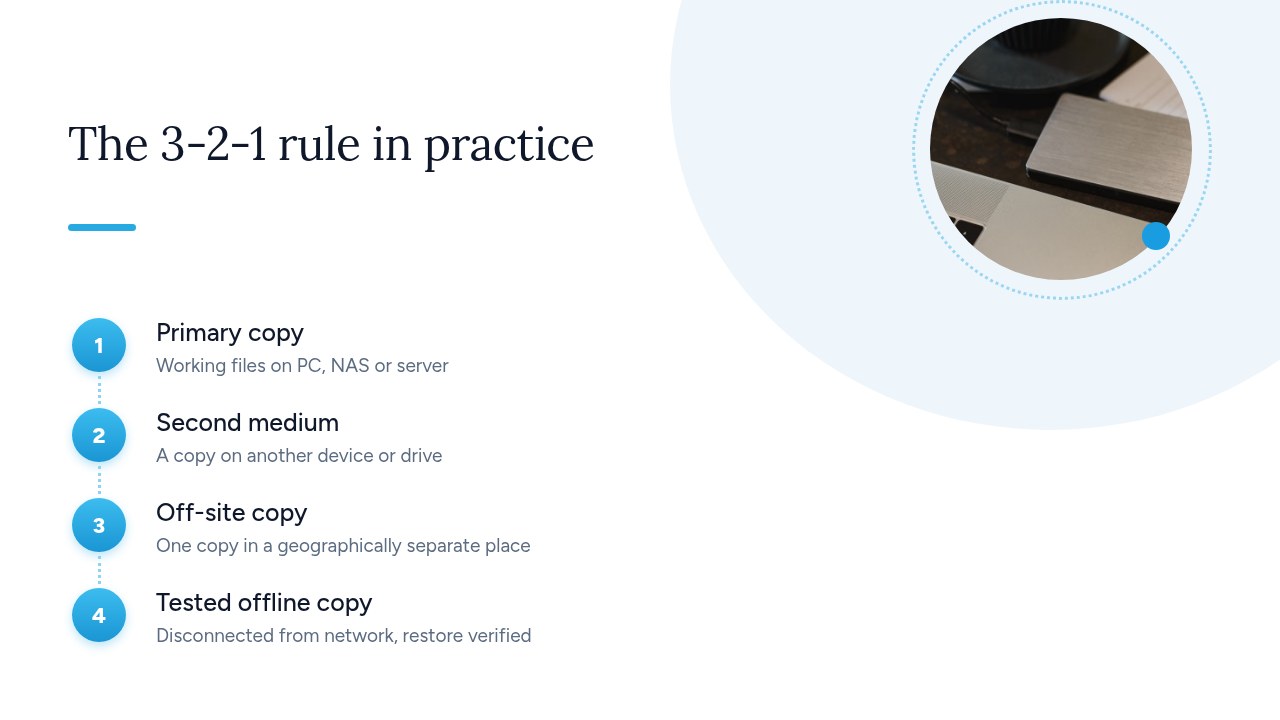
Here are three practical setups, from the most common to the most controlled:
- NAS + cloud: your computers back up to the NAS, which sends an encrypted copy to a cloud service. To meet the 3-2-1 rule, add an external drive that you unplug after each backup.
- NAS + unplugged external drive + remote server: the NAS is the local copy. The external drive, plugged in only during backups, provides the offline copy. A server located elsewhere receives the offsite copy.
- Private server + offline drive: your files live on a server hosted in a data center, so they're already outside your premises. A drive you keep at home, unplugged between backups, completes the setup.
As for frequency, the CNIL suggests daily incremental backups and full backups at regular intervals. An incremental backup only copies what has changed since the last backup: it's fast and takes up little space.
Pro tip: schedule the full backup on a fixed day, say Friday evening, and make it the day you plug the offline drive back in. A set routine is far less likely to be forgotten.
NAS or cloud: what does it really cost over 5 years?
To find out what each option really costs over 5 years, add up every expense, not just the purchase price or the monthly subscription. The NAS often looks more expensive up front and the cloud cheaper at first, but over five years the difference comes down to the hidden costs.
Here's a checklist to fill in with your own numbers, over 60 months:
- NAS, hardware: the price of the enclosure and drives at the time of purchase.
- NAS, drive replacements: set aside a budget for spares. In 2024, Backblaze measured an annualized failure rate of 1.57% across its fleet. With four drives over five years, that works out to about a third of a failure on average. Keeping a spare drive on hand is still wise.
- NAS, electricity: the device's rated power draw, multiplied by 24 hours, 365 days and your price per kWh.
- NAS, offsite copy: the cloud subscription or second device you need to meet the 3-2-1 rule.
- NAS, admin time: the hours you spend each month on updates and checks, multiplied by what your time is worth per hour.
- Cloud, subscription: the price of the tier that matches the amount of data you'll have in five years, not today.
- Cloud, price increases: a buffer for increases the provider decides to make.
- Cloud, exit cost: the time spent exporting and migrating on the day you switch services.
- Managed private server: the subscription listed on the provider's pricing page, which includes the hardware and administration.
Pro tip: put a price on your time. It's almost always the line that tips the balance, especially for a freelancer or a small team without an IT person.
Which option should you choose: individual, freelancer or SMB?
The right choice depends on three things: how much data you have, how sensitive it is and how much time you can spend on administration. Here's a recommendation for each of the three most common profiles.
- An individual with family photos: the volume is modest, but the memories are irreplaceable. A NAS makes sense if you already enjoy tinkering with computers and have a safe place for a second copy. The cloud is often enough, as long as you add an unplugged external drive. An offsite copy is essential: a house fire shouldn't take all your photos with it.
- Freelancer: your client data falls under the GDPR, you need remote access and you have little time for administration. A NAS open to the Internet adds a risk you'll have to keep an eye on. A consumer cloud service raises questions about the contract and the provider's home country. A managed private server is often the simplest option: remote access, dedicated data, maintenance handled for you.
- SMB with 5 to 50 workstations: you need to share files between colleagues, manage permissions by team and meet CNIL requirements. A NAS works if someone in-house actually administers it. Otherwise, a managed private server keeps you from depending on a single person. Either way, keep a separate, offline copy, as required by the CNIL.
To dig deeper, read our Cloud for SMBs guide and our guide to encrypted self-hosted backups.
How do you check that a restore really works?
The only way to know whether a restore works is to actually do one, at regular intervals. Seeing “successful” backups on a dashboard proves nothing. The CNIL recommends regularly testing backup integrity and the ability to restore from them. Here's a simple procedure to follow every quarter:
- Restore a specific folder: pick a real folder, such as last month's accounting, and restore it to a separate location, never over the originals.
- Go back through versions: recover a version of a file that's several weeks old. That's what will save you after ransomware that went unnoticed.
- Check that files open: open a few files of different types (document, spreadsheet, photo). A file that's there but unreadable is useless.
- Time it: note how long the restore takes. If it takes two days to get your data back, your business stops for two days.
- Record the result: write down the date, what was tested, how long it took and any problems you ran into in a simple shared document.
This test complements the other good habits. Cybermalveillance.gouv.fr recommends disconnecting the backup media when it's not in use, and making several backups on different media, one of which is kept in another location. It also recommends regularly testing that the backup works.
Pro tip: have the restore tested by someone other than the person who set up the backups. If they can do it using only the written procedure, you no longer depend on a single person.
Yundera: a managed private server between a NAS and the cloud
Yundera offers a third way between a NAS and consumer cloud storage: a managed private server, the Personal Cloud Server, hosted in France and dedicated to a single customer. As with a NAS, you have your own server and your data stays on it: Yundera doesn't collect it or sell it. As with the cloud, the machine is located somewhere other than your home and Yundera manages it, so you don't need any technical skills.
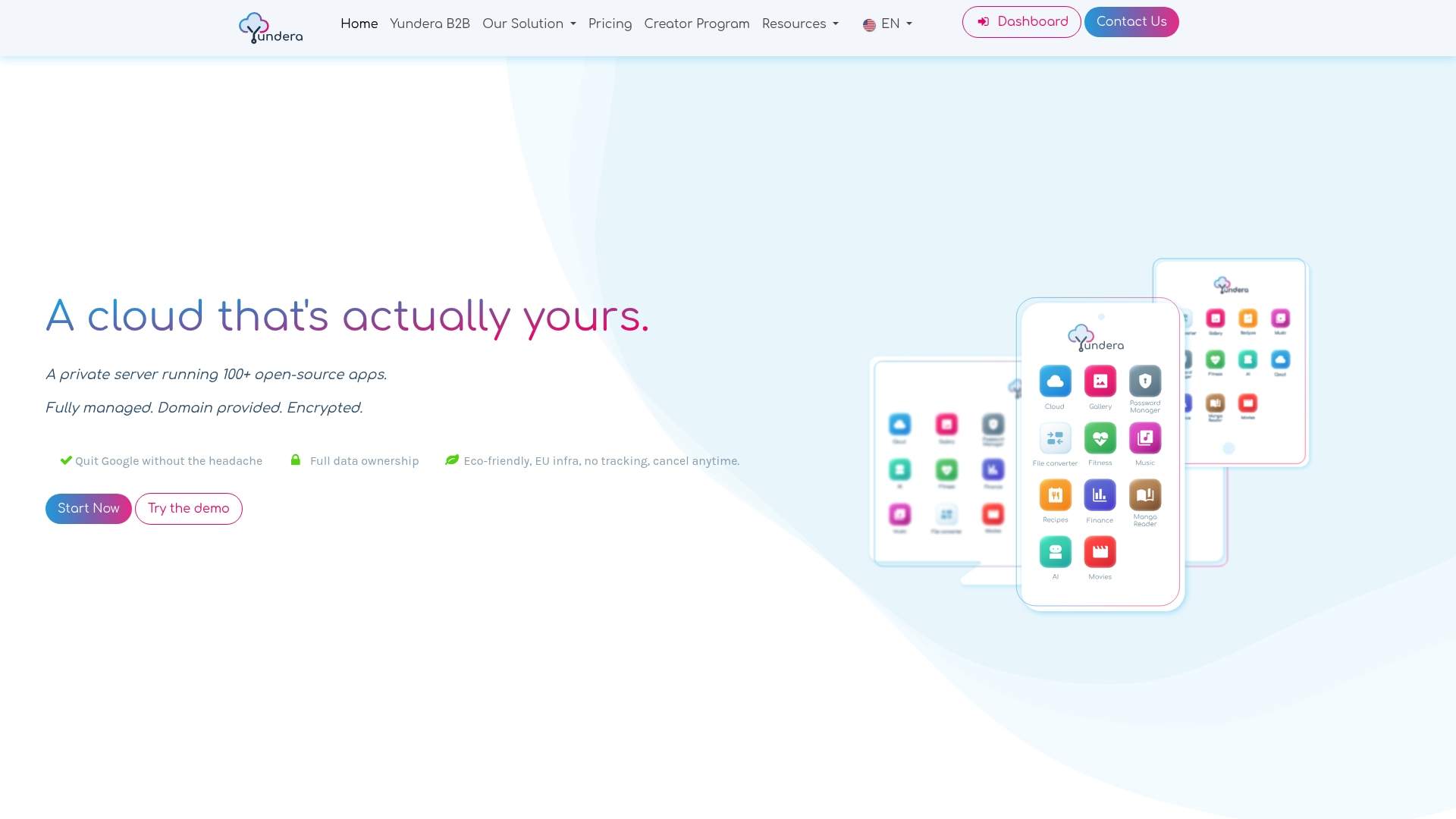
The server comes with ready-to-use open source apps that you install in one click from an app store: file storage, photos, website hosting, office tools and more. Each app is available on your own domain name, over HTTPS, with no static IP, no port forwarding and no certificates to set up yourself. That's exactly the tricky part of a NAS open to the Internet, as the DeadBolt case above shows. The 3-2-1 rule still applies: the server counts as one of your copies, and you still need an offline copy. Our guide to encrypted self-hosted backups explains how to set it up.
To compare this option with your NAS or your current cloud subscription using the cost checklist above, see the plans and pricing on the Yundera private servers page.
NAS or cloud: the most common mistakes
The most common mistakes don't come from choosing between a NAS and the cloud, but from protection you think is in place when it isn't:
- Thinking RAID is a backup: it protects against a drive failure, not against deletion or ransomware.
- Exposing a NAS without updates: DeadBolt encrypted more than 3,600 QNAP NAS devices reachable from the Internet.
- Confusing sync with backup: a file deleted or encrypted on your computer is deleted or encrypted in the cloud too.
- Keeping every copy in the same place: a theft or fire takes them all.
- Never testing a restore: you find the problem the day you need it.
- Forgetting the exit cost: exporting years of data from a cloud service takes time and money.
Remember one simple rule: at least one copy somewhere else, one offline copy and one restore test per quarter. For the details, rely on the CNIL's backup guidance and the best practices from Cybermalveillance.gouv.fr.
— Yundera
Sources
- Security: Backing Up | CNIL
- Why and how to manage your backups properly - Cybermalveillance.gouv.fr
- Facing DeadBolt ransomware, QNAP forces NAS updates - Le Monde Informatique
- DeadBolt ransomware: new attacks underway, QNAP investigating - IT-Connect
- Hard Drive Failure Rates: The Official Backblaze Drive Stats for 2024
Frequently Asked Questions
Can a NAS replace Google Drive or OneDrive?
Yes for storing, sharing and syncing files: most NAS devices offer apps that do the same thing. However, remote access, updates and security become your responsibility. A NAS also doesn't spare you the need for an offsite copy, which Google Drive or OneDrive partly provided.
Is a NAS's RAID enough as a backup?
No. RAID lets the NAS keep running if a drive fails, but a deletion, ransomware, theft or fire hits every drive at the same time. The CNIL recommends at least one backup at a separate site and one offline copy.
Is it dangerous to access your NAS from the Internet?
It's risky if the NAS is directly exposed and not kept up to date. In 2022, the DeadBolt ransomware encrypted more than 3,600 QNAP NAS devices, and QNAP asked its customers not to expose their NAS devices to the Internet. To access your NAS remotely, go through a VPN, install updates and use a strong admin password.
How long does a NAS hard drive last?
There's no fixed lifespan: a drive can fail in its first year or keep going much longer. Across more than 300,000 drives, Backblaze measured in 2024 an annualized failure rate of 1.57%. So budget for replacements and, above all, keep a backup.
For an SMB, is storing data on a NAS GDPR-compliant?
A NAS can absolutely be compliant, but the hardware alone isn't enough: compliance depends on how you protect the data. Manage access rights, encrypt backups, keep an offsite copy and an offline copy, and regularly test restores, as recommended by the CNIL.
NAS or Cloud: Which Should You Choose to Store Your Data in 2026?