Protect Your Data: Shared Family Calendar and the Private Option

For most families, the simplest solution is to use the shared calendar already built into Google or Outlook. If data privacy comes first for you, look instead at a calendar hosted on a managed private cloud, which leaves you with full ownership of your information. Both approaches can be set up in a few minutes, with no particular technical skills required.
In short:
- Families can go with a built-in calendar such as Google or Outlook, but this limits their control over personal data.
- Creating and managing a shared calendar means clearly defining who can view, edit or delete events, with a testing phase before rolling it out to everyone.
- The features that really matter day to day include custom views, differentiated reminders, and integration with school and work calendars.
- Privacy depends above all on where the data is hosted, with a preference for a managed private cloud based in France to guarantee GDPR compliance.
- Getting the whole family on board comes down to simple routines such as a weekly check-in and colour conventions, so that one parent doesn't end up managing the calendar alone.
Table of contents
- Shared family calendar: three possible approaches
- How to create and share a family calendar, step by step
- Which features make a family calendar genuinely useful?
- Privacy and GDPR: what to check before sharing your family data
- How do you get the whole family to actually use the shared calendar?
- Yundera's take on family data sovereignty
- Yundera, the option designed for families who want to stay in control
- Sources
Shared family calendar: three possible approaches
Three families of solutions compete for a place in the daily life of French households. Each answers a different priority: instant simplicity, feature richness, or full control over your data.
The built-in calendar (Google's or Outlook's) appeals because it's free and natively integrated into tools already installed on your phones. You're not adding anything, you're simply switching on a feature that's already there. It's the logical choice for a couple who want to sync two schedules with no setup effort.
Dedicated family apps (often free with a paid tier) add features designed specifically for family life: shared shopping lists, chore tracking, child location. They suit blended families or co-parenting situations well, where several adults need to coordinate complex schedules without necessarily sharing the rest of their digital lives.
The managed private cloud turns the logic on its head: instead of handing your calendar to a free service funded by advertising or data exploitation, you host your own calendar on a server that belongs to you. This option requires a subscription, but it removes the question of your personal data being monetised.
Here's how the three options differ in practice:
- Built-in calendar: free, quick to enable, but your household depends entirely on the ecosystem you've chosen (Google or Microsoft).
- Dedicated family app: rich features (tasks, shopping, location), but a business model often based on advertising or data.
- Managed private cloud: full control over your data and guaranteed export, in exchange for a modest monthly subscription.
Further down we go into the privacy and syncing criteria that should guide your final choice.
How to create and share a family calendar, step by step
The basic mechanics barely change from one service to another: create a shared space, invite the right people, and set who can view and who can edit. Here's the procedure, valid for most ecosystems.
- Create the group or family in your account. On Google, creating a family group automatically generates a family calendar accessible to every member you add. On Outlook.com, you create a group calendar and invite each person individually, as set out in the official Outlook documentation.
- Add the members of your household. Each invitation is sent by email address. Once accepted, the person sees the family calendar appear in their app, alongside their personal calendar.
- Set the permissions. Decide who can only view and who can edit or delete events. This step prevents duplicates and accidental deletions when several adults manage the same schedule.
- Create your first shared event. Add a clear title and a time, and tick the recurrence box if the event repeats (Wednesday piano lessons, Saturday morning sports).
- Configure recurrence precisely. Choose the frequency (weekly, monthly), how long the repetition lasts, and the associated reminders. A reminder 30 minutes ahead works well for appointments; a reminder the day before suits more important events.
- Sync with your existing accounts. Most services support import or export in iCal format, which lets your child's school calendar, your work calendar and the family calendar coexist in a single view.
- Test before rolling it out. Create a dummy event, check that it shows up for every member, then delete it.
One point that's often overlooked: removing someone from the family group immediately revokes their access to the shared calendar, but deleting the whole group does not automatically erase the events already created. You generally have to delete them manually, as Google Calendar Help points out. Keep this detail in mind ahead of a separation or a move that would change the make-up of the household.
Pro tip: Once everything is set up, ask each family member to create a test event from their own device. You'll spot a permission or syncing problem straight away, before it causes a genuinely missed appointment.
Which features make a family calendar genuinely useful?
A shared calendar is only worth what it lets you take in at a glance. Some features make a real difference in daily use; others are just marketing filler.
Combined and individual views are among the most useful: being able to switch between "the whole family" and "just the kids" saves you from drowning in an overloaded calendar on a Monday morning. Paired with colour coding per person, they let you see who has what in a split second, without reading every line.
Custom reminders also deserve your attention: a teenager doesn't need the same notification lead time as a parent handling the driving. Set different reminders depending on the type of event rather than applying a single lead time across the whole calendar.
Built-in tasks and shopping lists turn a simple calendar into a genuine household organisation tool, particularly useful for managing shared custody or splitting up chores without endless negotiation.
Finally, check compatibility with school and work calendars: a calendar that won't accept the iCal import from your child's school will force you to re-enter every holiday and every parent-teacher meeting by hand.
Key points for comparing your options:
- Per-person view and overview combined.
- Colour codes assigned automatically per member.
- Different reminders depending on the type of event.
- Tasks and shopping in the same space.
- Working iCal import/export with external calendars.
The number to remember: group calendars in the big ecosystems such as Outlook.com already let you manage view and edit permissions event by event in their free version — a level of granularity many families don't know about and never make use of.
Privacy and GDPR: what to check before sharing your family data
A family calendar holds more sensitive information than it seems: childcare schedules, medical appointments, each parent's home address in co-parenting situations. Before entrusting that data to a service, four checks are essential.
First, check where the data is hosted and whether the provider complies with the GDPR. Hosting within the European Union offers a more protective legal framework than a server sitting beyond the reach of European law. Our practical guide to controlling your data online goes into the warning signs to watch for.
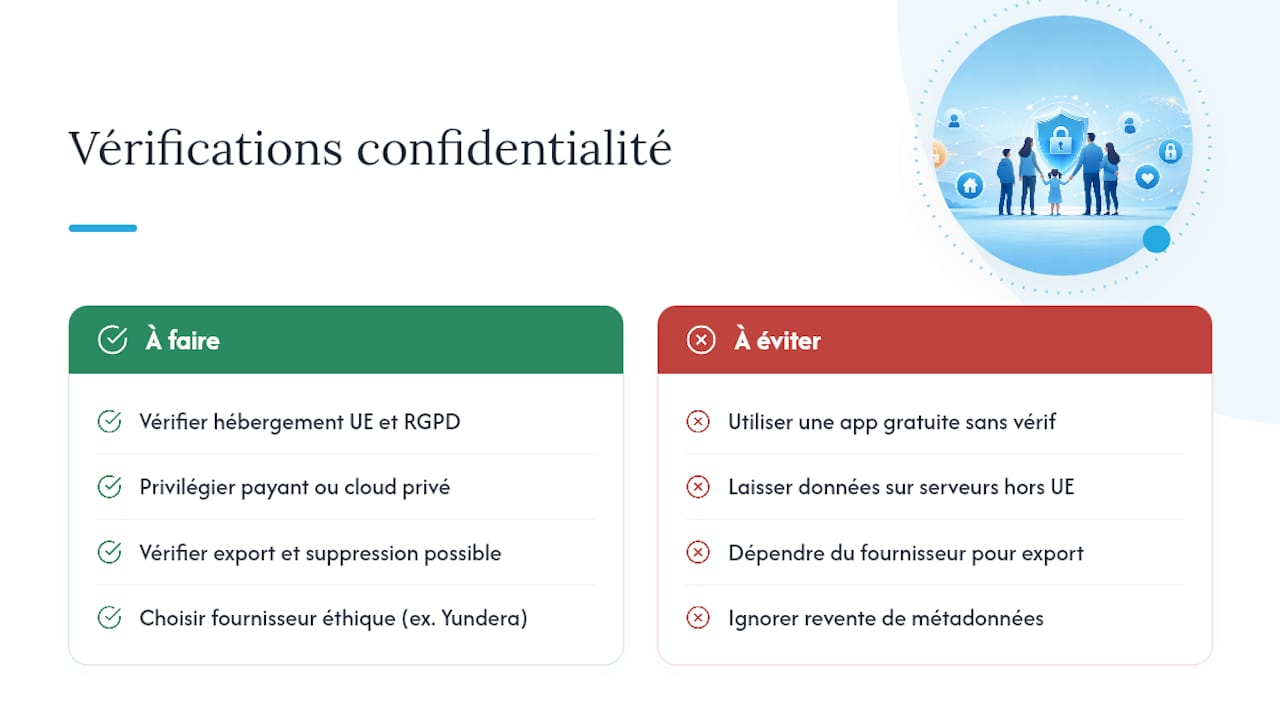
Next, question the service's business model: a free tool is rarely funded by its publisher's goodwill alone. Targeted advertising or the resale of metadata remains a common revenue stream for "free" family apps. A paid model, or a managed private cloud, structurally removes that temptation.
Also make sure you can export and delete your data at any time, without depending on the provider's goodwill.
Managed private cloud providers typically offer data export, support and local hosting, which directly addresses the privacy concerns of families who refuse to see their daily habits turned into an advertising product.
A managed private cloud such as Yundera meets all four criteria at once: hosting in France, no data resale, guaranteed export at any time, and ethical infrastructure by design. To dig deeper into the legal obligations around cloud services in France, our article on enterprise cloud and GDPR compliance provides useful reference points, even for family use.
How do you get the whole family to actually use the shared calendar?
A family calendar is useless if only one parent fills it in. Real adoption comes from simple habits, not from extra features.
- Set up a five-minute weekly check-in. On Sunday evening or Monday morning, go over the week ahead together. This short routine avoids surprises and gives everyone a share of the responsibility.
- Agree on clear, stable colour conventions. Blue for dad, pink for mum, green for shared activities: whatever code you choose, keep it consistent over time so that reading the calendar becomes automatic.
- Tune notifications to limit the noise. Too many alerts and people start ignoring the calendar altogether. A reminder the day before for the essentials is plenty for most households.
- Involve children gradually, according to their age. A ten-year-old can check their own school calendar; a teenager can add their own events subject to parental approval.
To structure homework help within that same shared calendar, the online homework workshop offers a concrete method for settling into a 45-minute routine without daily friction.
Pro tip: Appoint a different "calendar lead" each month rather than letting the load always fall on the same person. Rotating the role prevents the mental exhaustion of being the one who always has to remember everything.
Yundera's take on family data sovereignty
A family calendar reveals a great deal about your private life: your schedule, your childcare arrangements, your medical appointments. We believe that information has no business feeding an advertising model, however free it may appear.
That's why Yundera offers managed private servers, with open-source applications already installed, designed to stay simple to use without sacrificing control. The core argument isn't fear, but practical freedom: you can export your data at any time, you get real support when you're stuck, and none of your information is ever monetised behind the scenes.
If privacy tops your list of criteria, compare the available options seriously before deciding. They are not all equal on that particular front.
— Yundera
Yundera, the option designed for families who want to stay in control
Yundera is the alternative to the free, ad-funded calendar: a managed private server, hosted in France, where your family calendar genuinely belongs to you, with no data resale and no analysis of your habits.
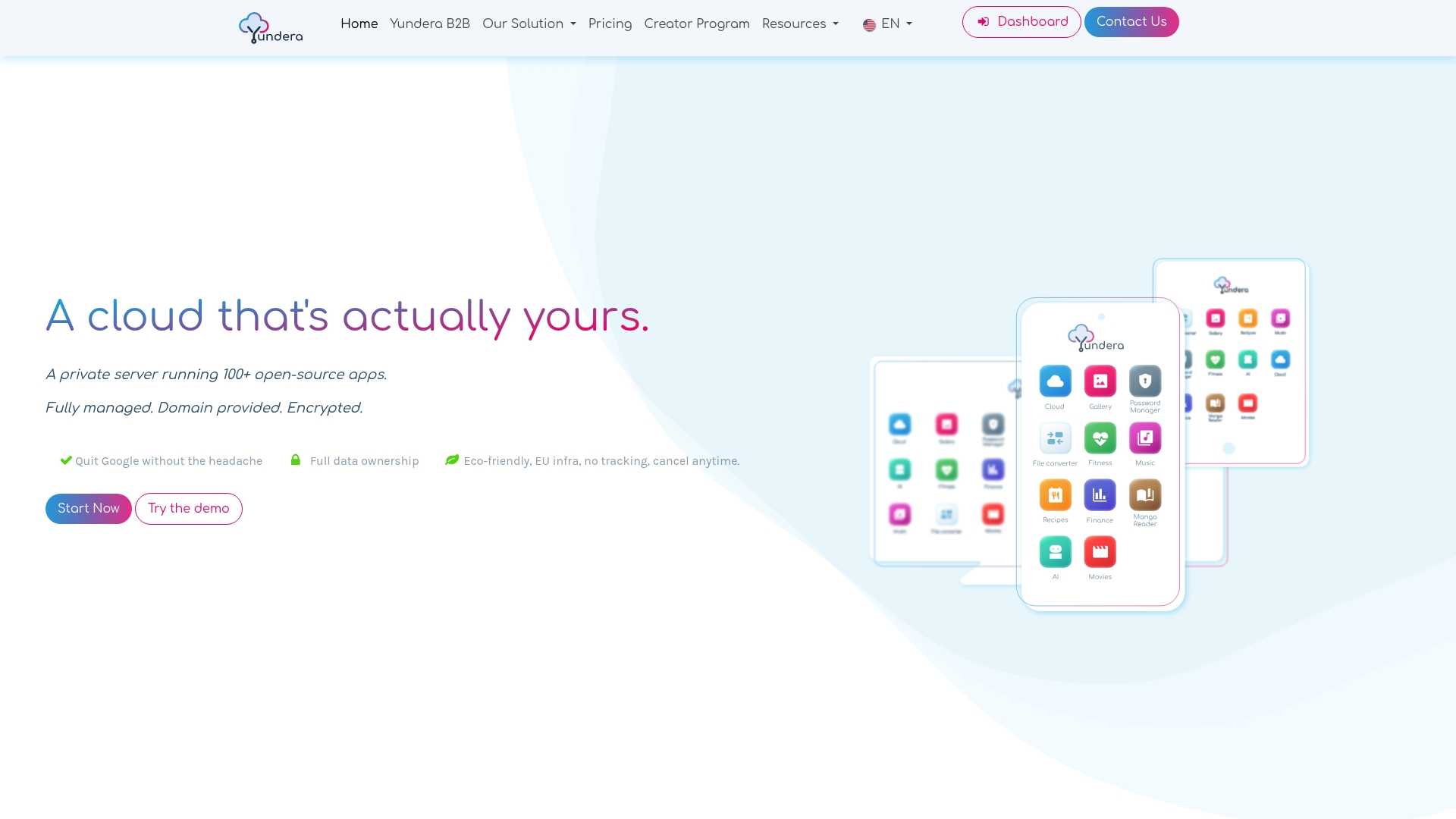
In practical terms, your subscription gives you access to more than 100 open-source applications already installed, including calendar solutions that sync via CalDAV with your phones and existing accounts, with no technical skills needed to get them working. You keep the ability to export all of your data at any time. Support is on hand if you have a question, and the infrastructure remains ethical by design. For families already hosting photos, files or a personal website, adding a shared calendar happens in the same space, without stacking up separate subscriptions. Discover the offer built for people who care about their data, and request a trial to see how your family calendar can move to a space you control entirely.
Protect Your Data: Shared Family Calendar and the Private Option